

How can I change a supplier's category status?
Online version: https://help.allmaz.az/guides/supplier-management/change-category-status/
A supplier’s category status is changed by the AVL manager with MANAGE CATEGORIES on the supplier’s Categories tab; the change is sent to approval as a Categories management event.
-
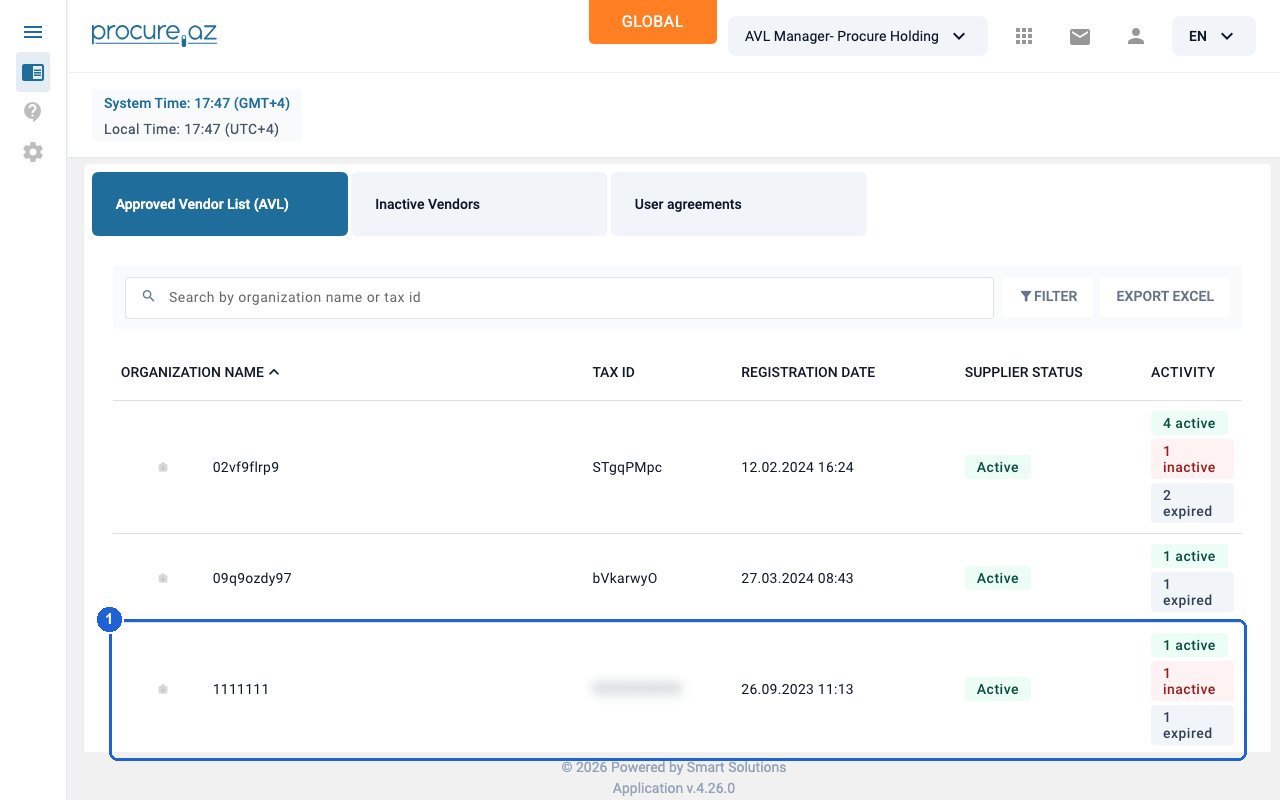
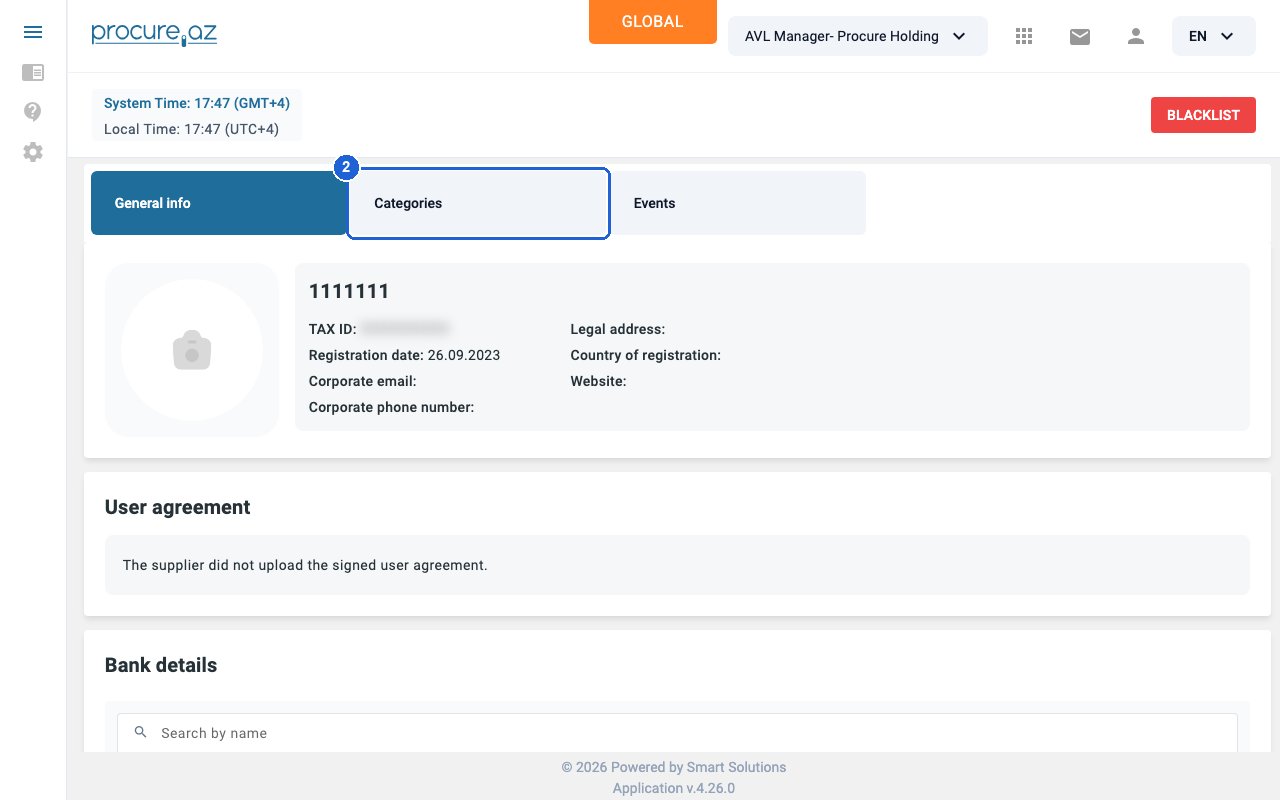
Open the supplier’s profile
On the Approved Vendor List, click the supplier’s name in the ORGANIZATION NAME column (here “1111111”).
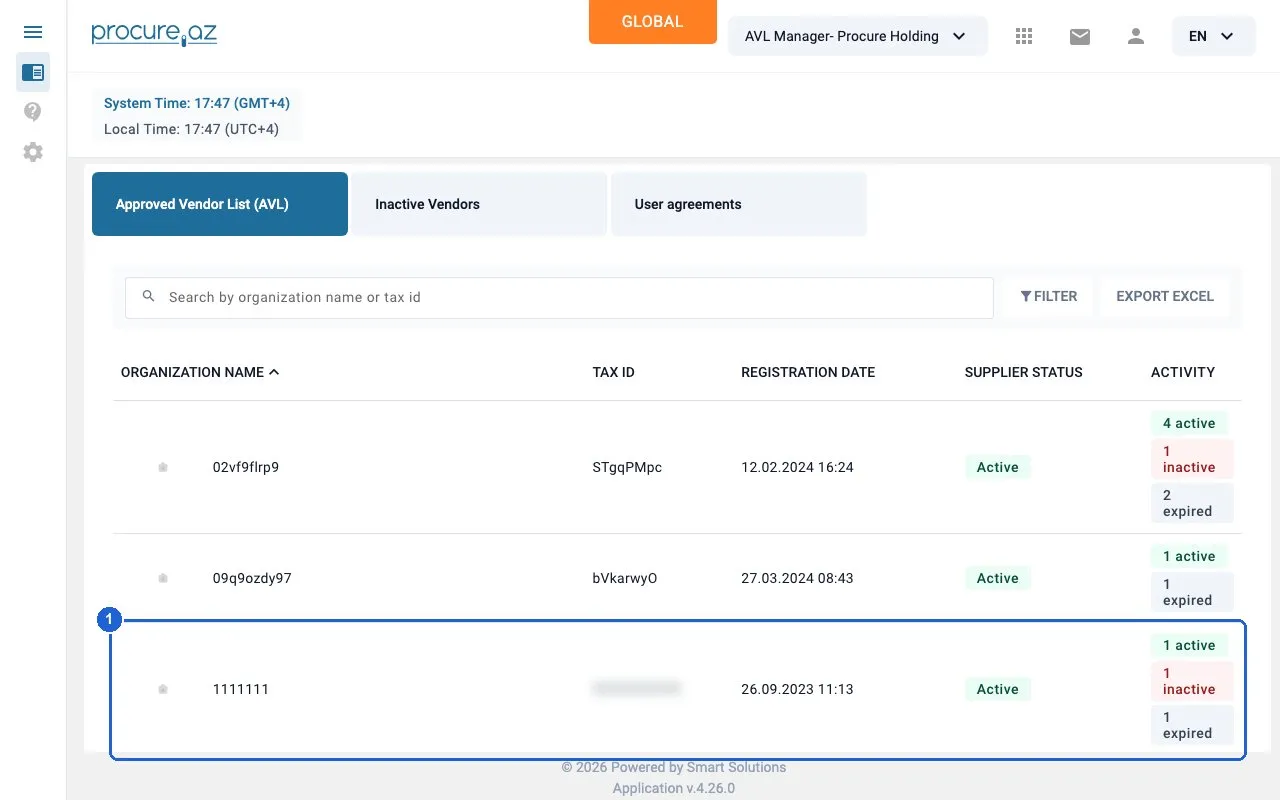
Step 1: Open the supplier's profile — click “1111111”. -
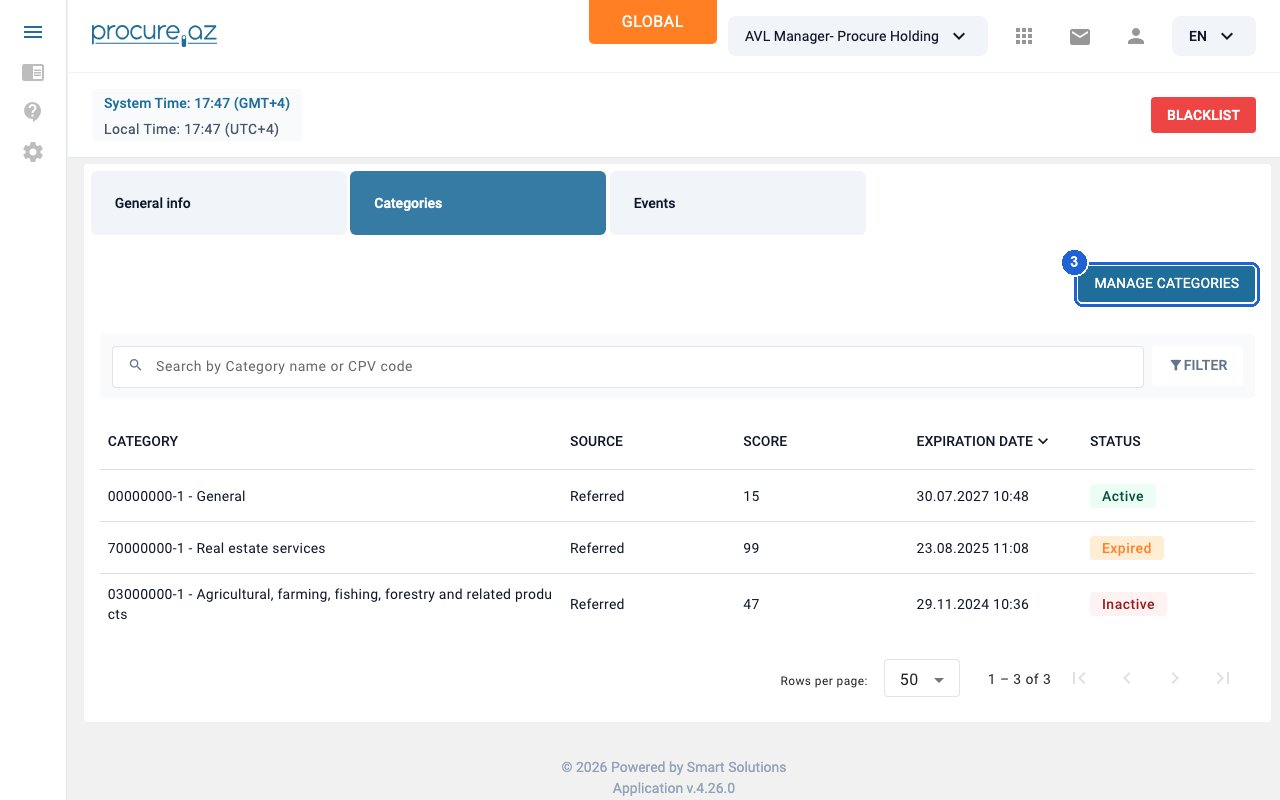
Open Categories
Click the Categories tab. It lists each category with its source, score, expiration date and status (Active, Expired or Inactive).
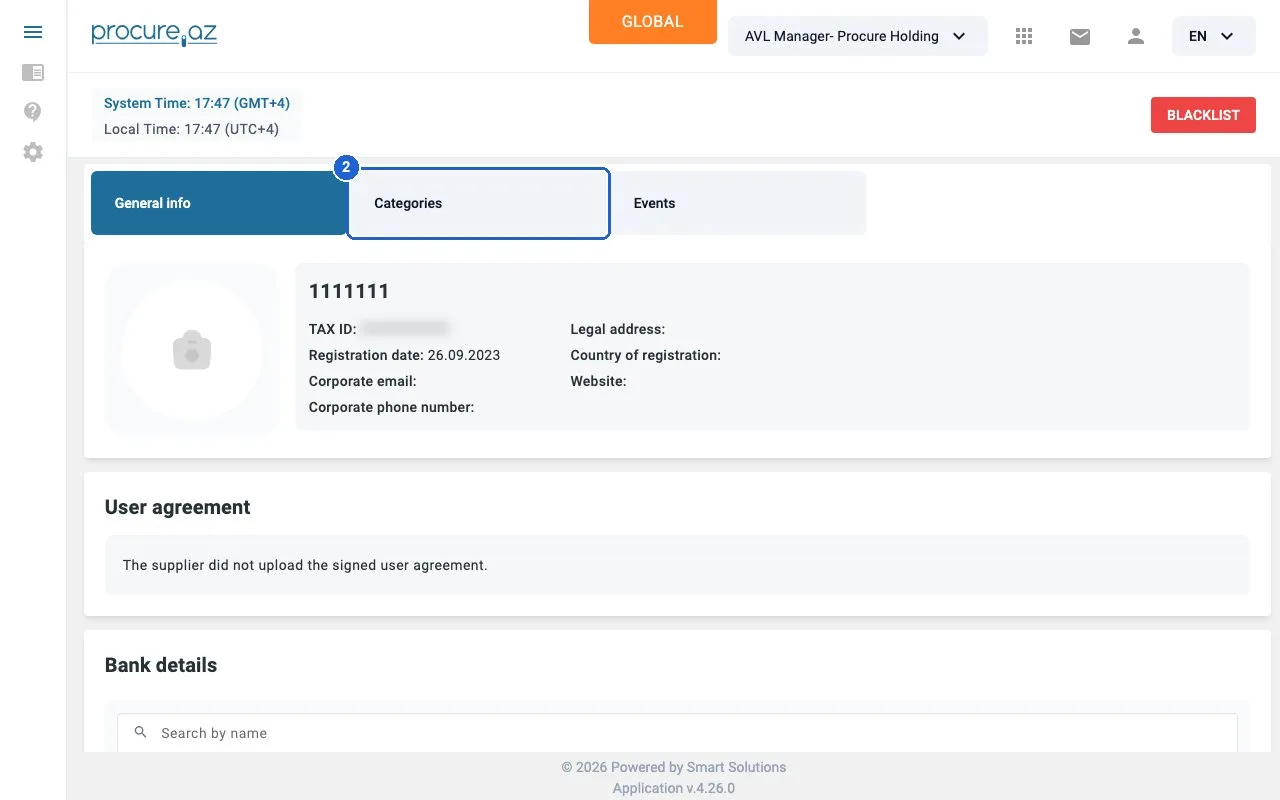
Step 2: Open Categories — click “Categories”. -
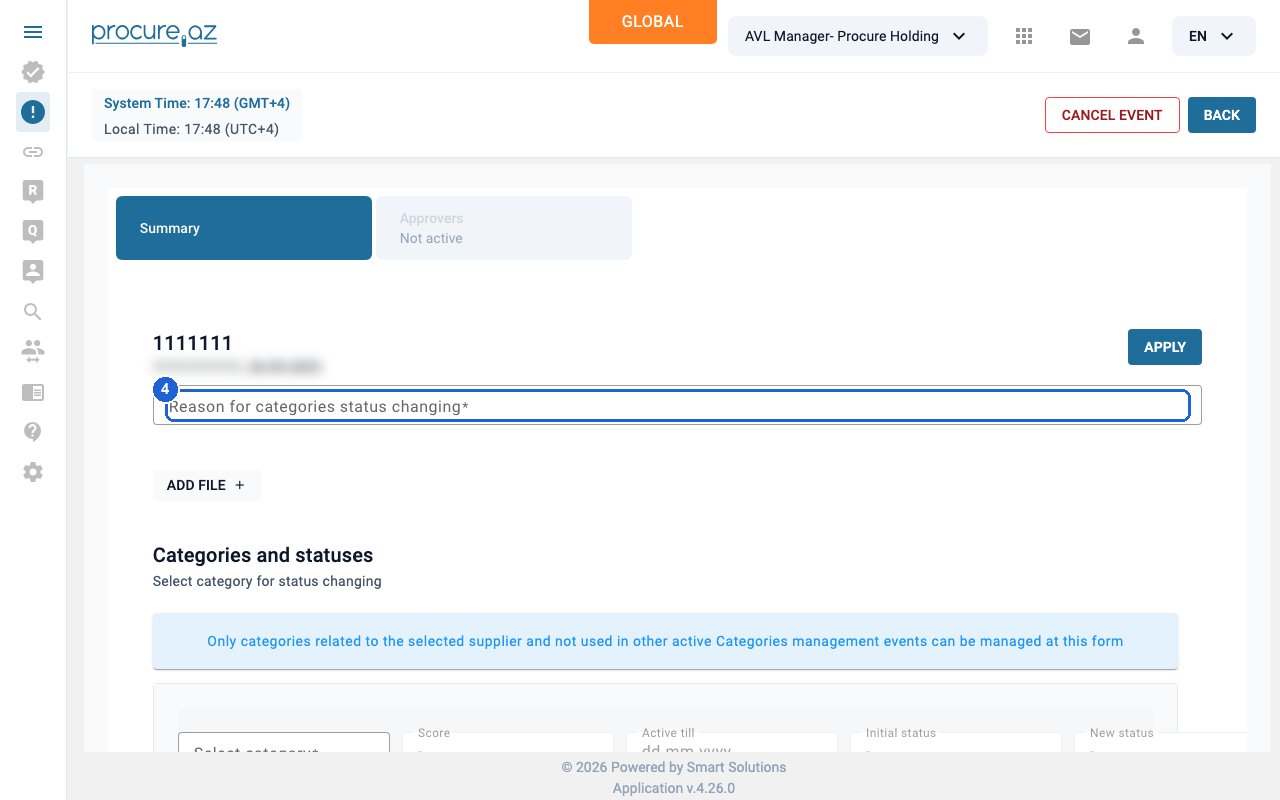
Click MANAGE CATEGORIES
Click MANAGE CATEGORIES at the top right of the Categories tab. A categories management form opens in the Pre-qualification module.
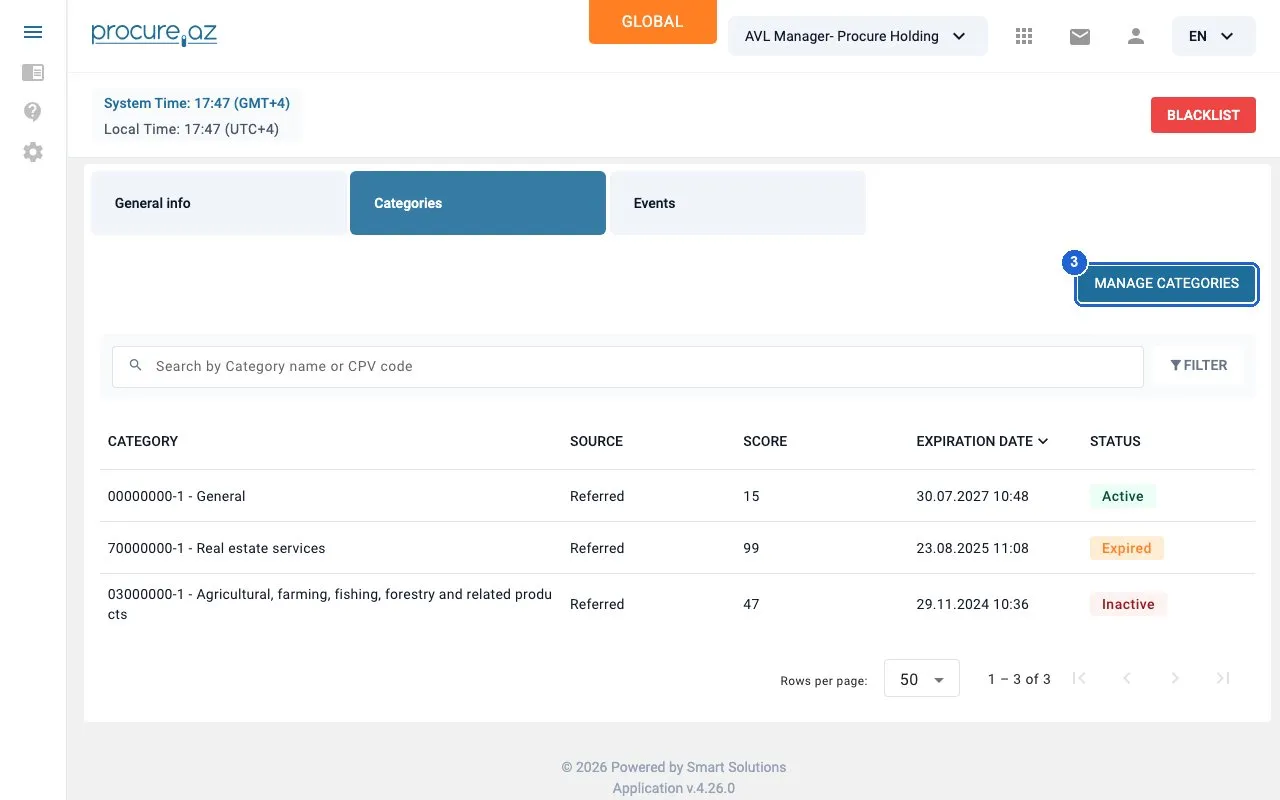
Step 3: Click MANAGE CATEGORIES — click “MANAGE CATEGORIES”. -
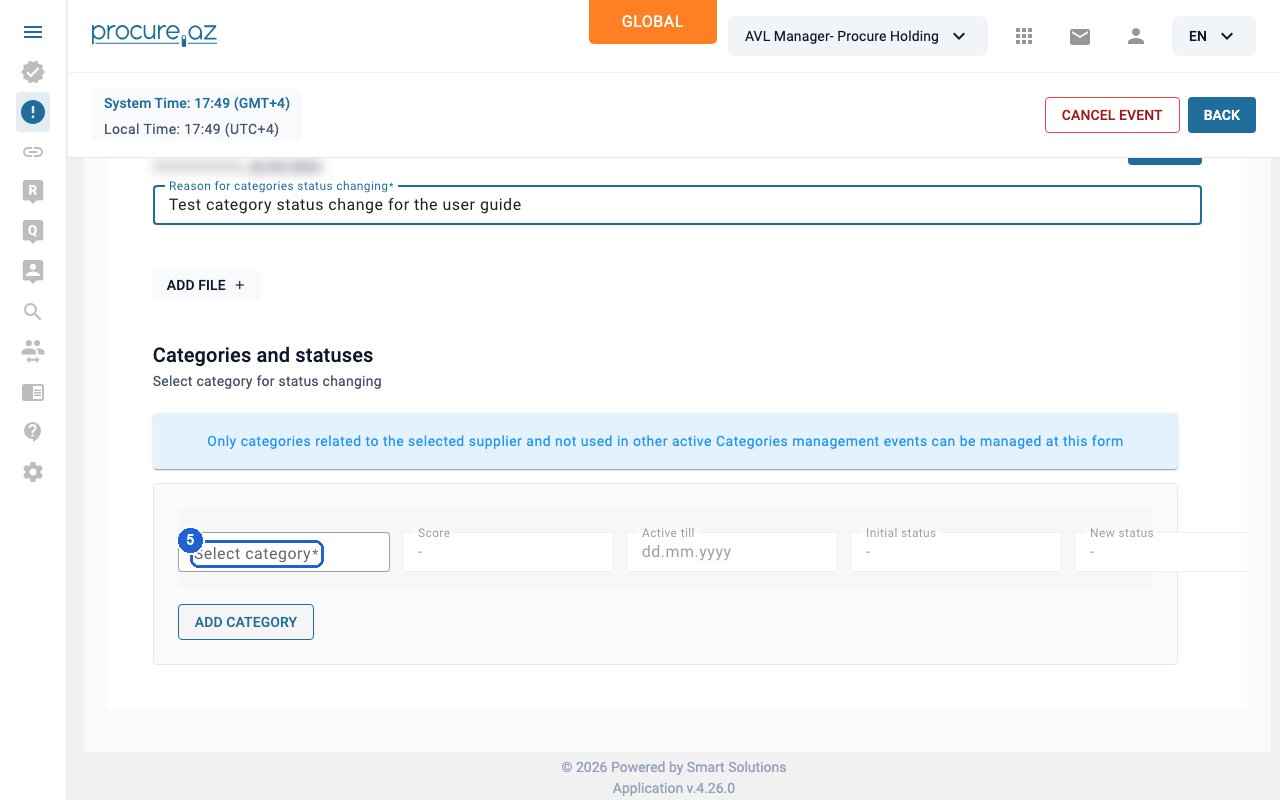
Give the reason
Type why the status changes in “Reason for categories status changing*” (required). Use ADD FILE + to attach supporting documents.
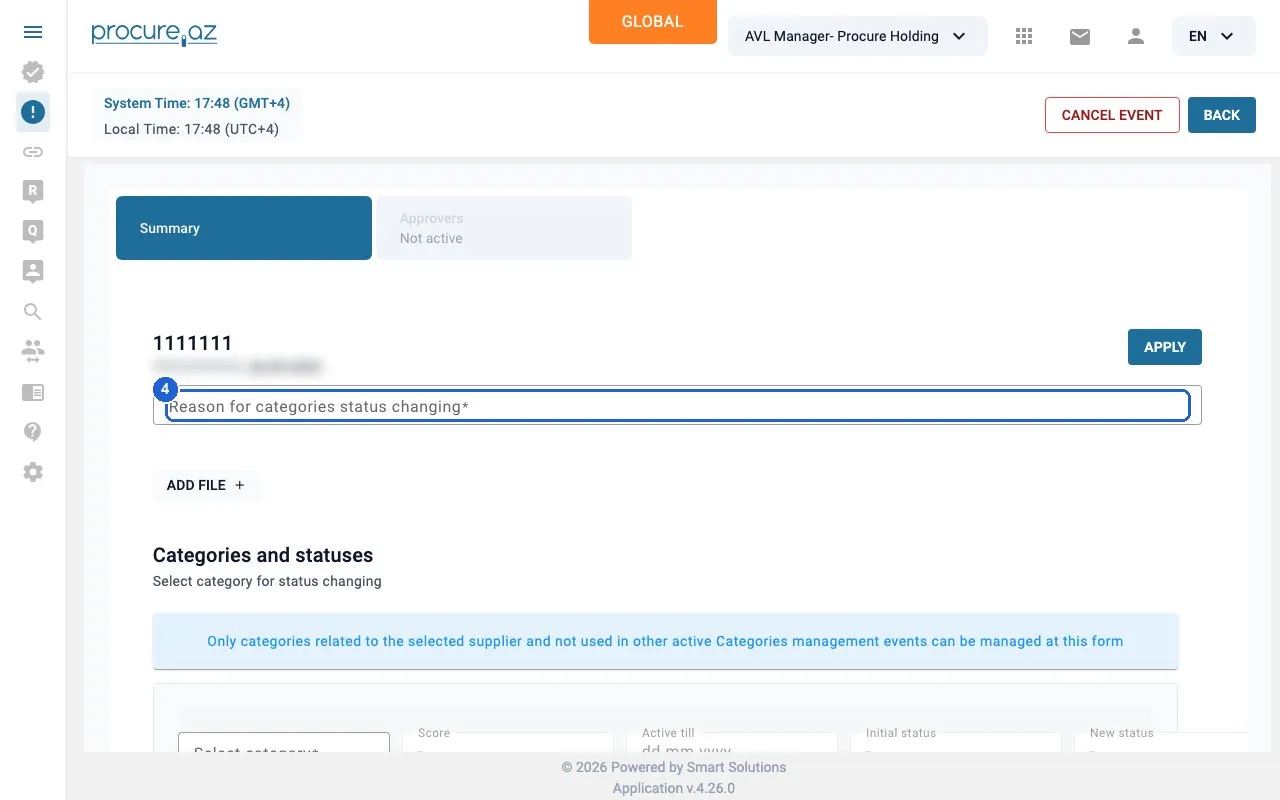
Step 4: Give the reason. -
Choose the category
Scroll down to “Categories and statuses”, click “Select category*” and pick the category (here “03000000-1 - Agricultural, farming, fishing, forestry and related products”). Score, Active till, Initial status and New status fill in by themselves. ADD CATEGORY adds another row.
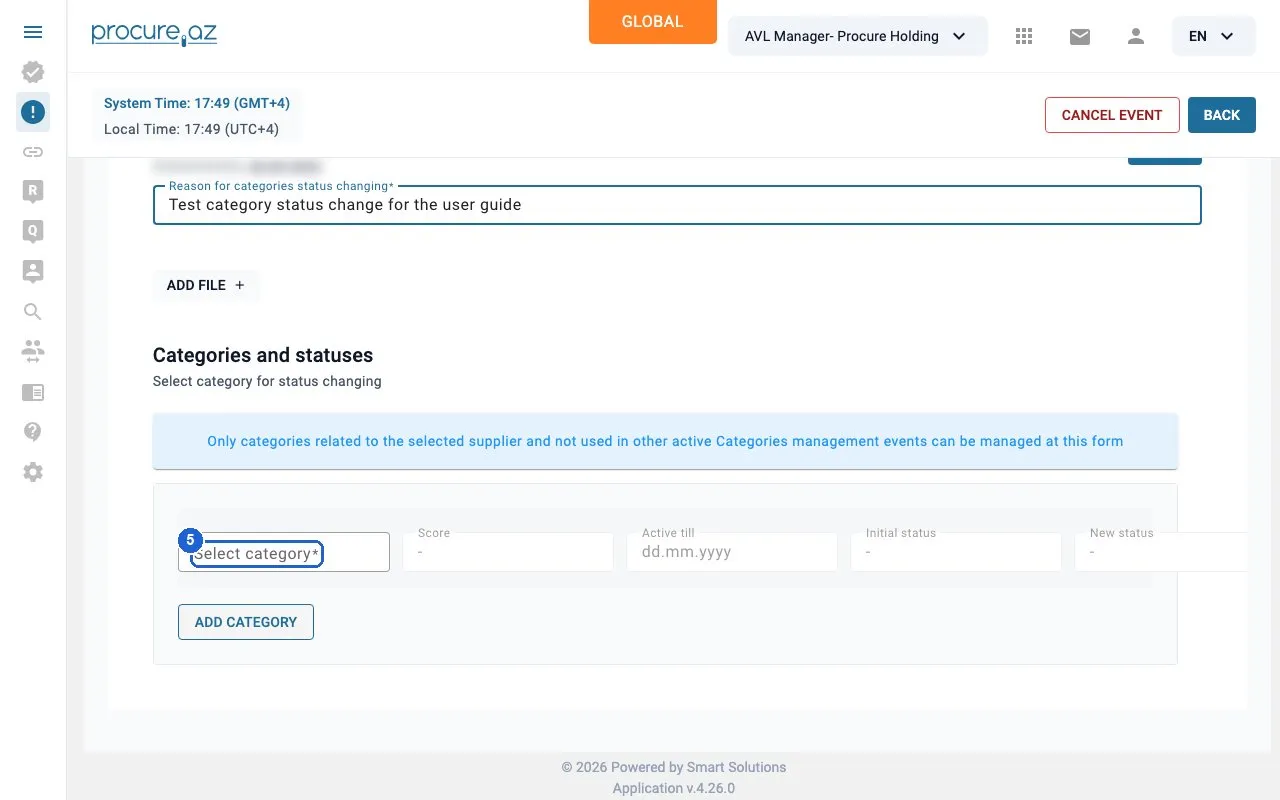
Step 5: Choose the category — click “Select category*”. -
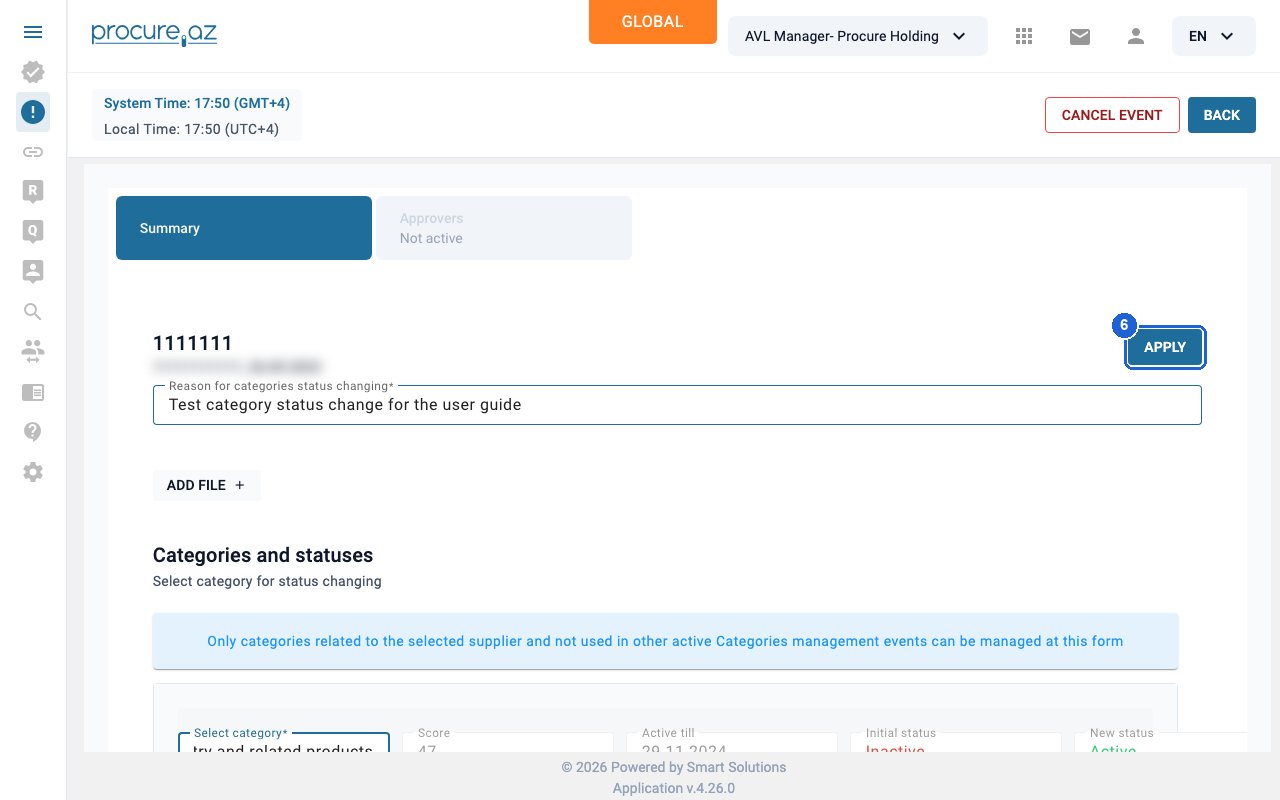
Apply
Scroll back to the top and click APPLY next to the supplier’s name.
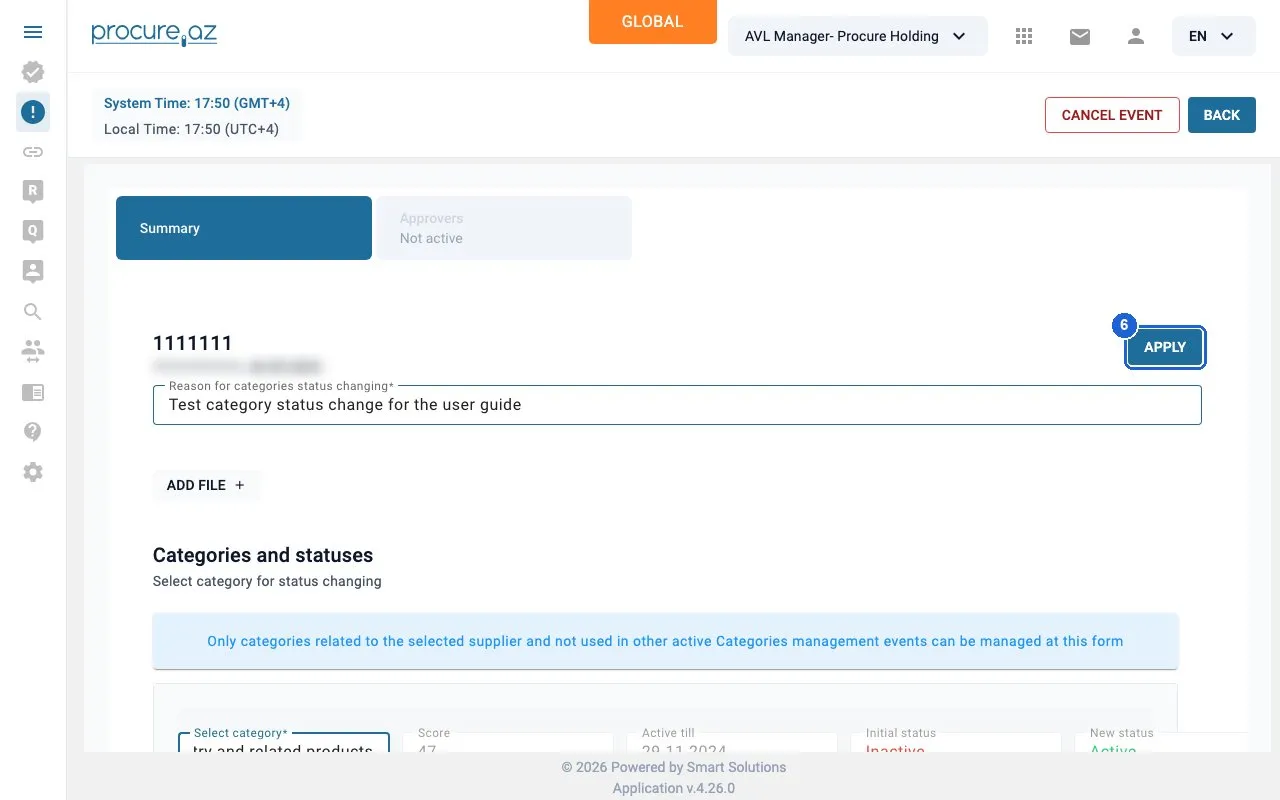
Step 6: Apply — click “APPLY”. -
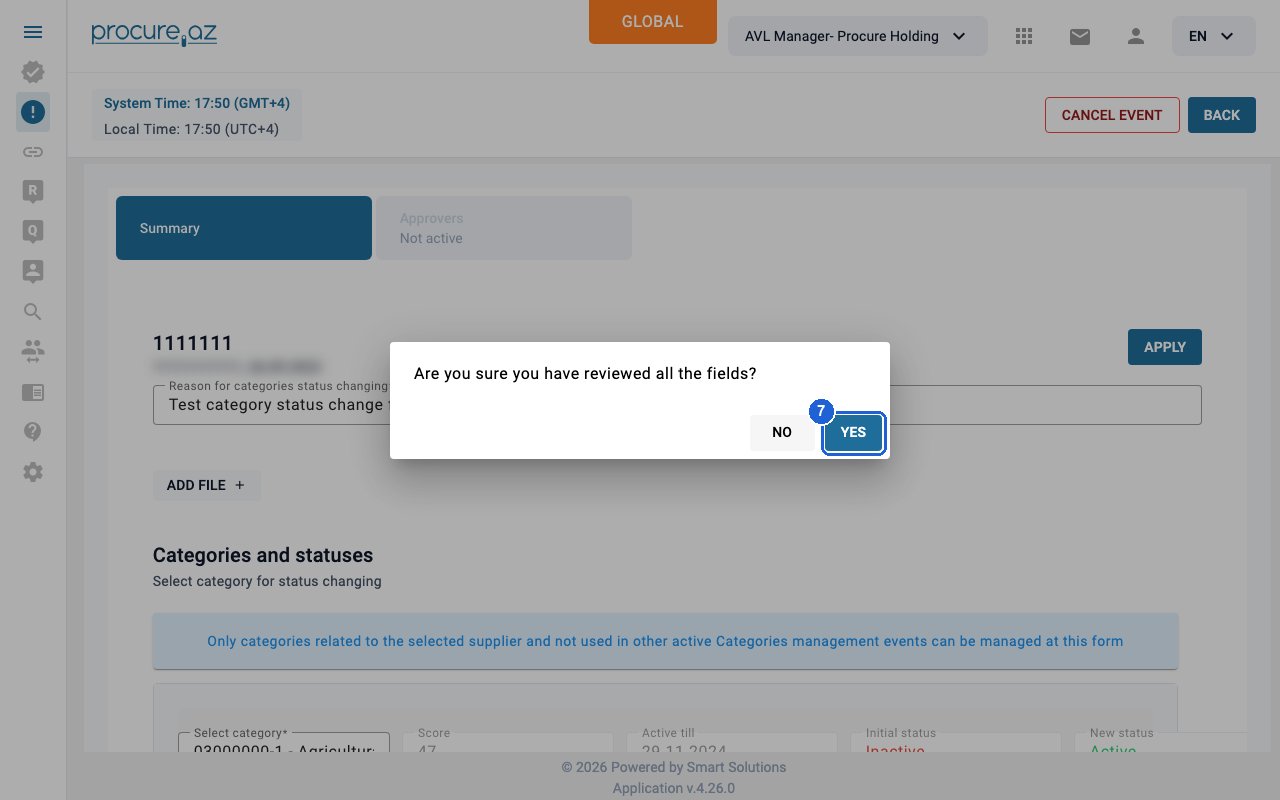
Confirm
Click YES. The change goes to approval as a “Categories management” event.
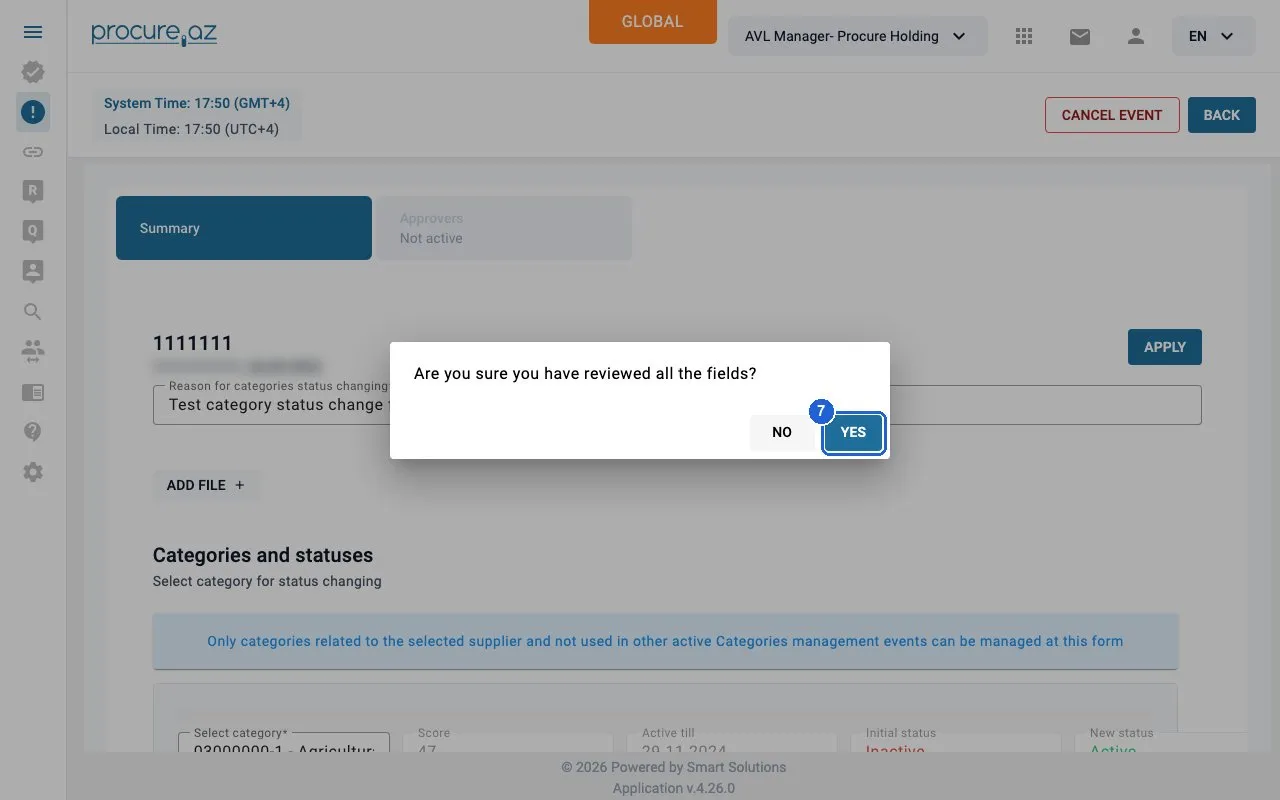
Step 7: Confirm — click “YES”.
Good to know
Section titled “Good to know”- You can’t pick the new status: it is always the opposite of the current one. Active or Expired becomes Inactive, and Inactive becomes Active.
- The status changes only after approval. The event is listed on the Blacklisting page (left sidebar) as “<number> - Categories management - <supplier>”, first with status “Pending approvers selection”.
- Only categories that aren’t already in another open Categories management event can be chosen.
- Once all of a supplier’s categories are Inactive, the supplier itself becomes inactive and can no longer be invited to events.