

How do I enable BOQ evaluation in the commercial envelope?
BOQ evaluation is a switch in the event’s Commercial criteria panel. Turn it on while the event is still a draft, then save.
-
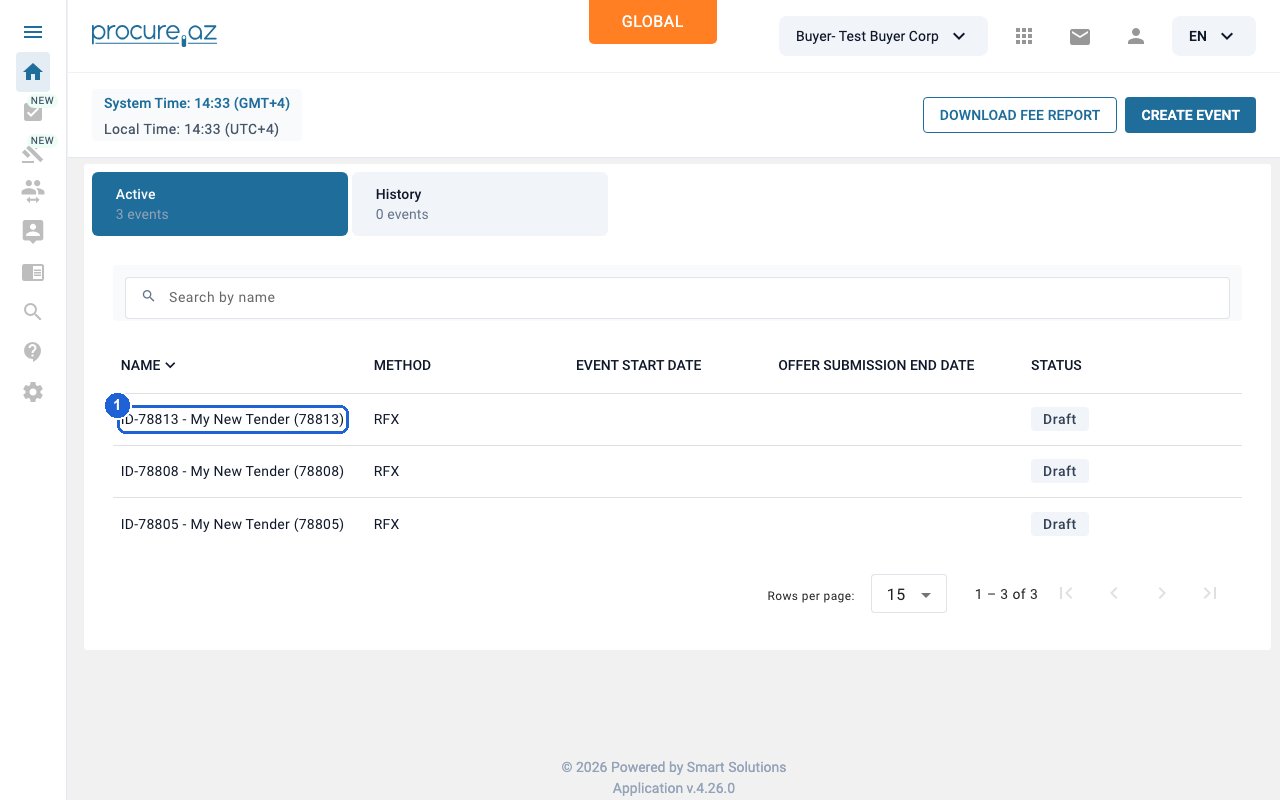
Open the draft event
On the Sourcing dashboard, click the draft event’s name (here “ID-78813 - My New Tender (78813)”) to open it in the Event constructor.
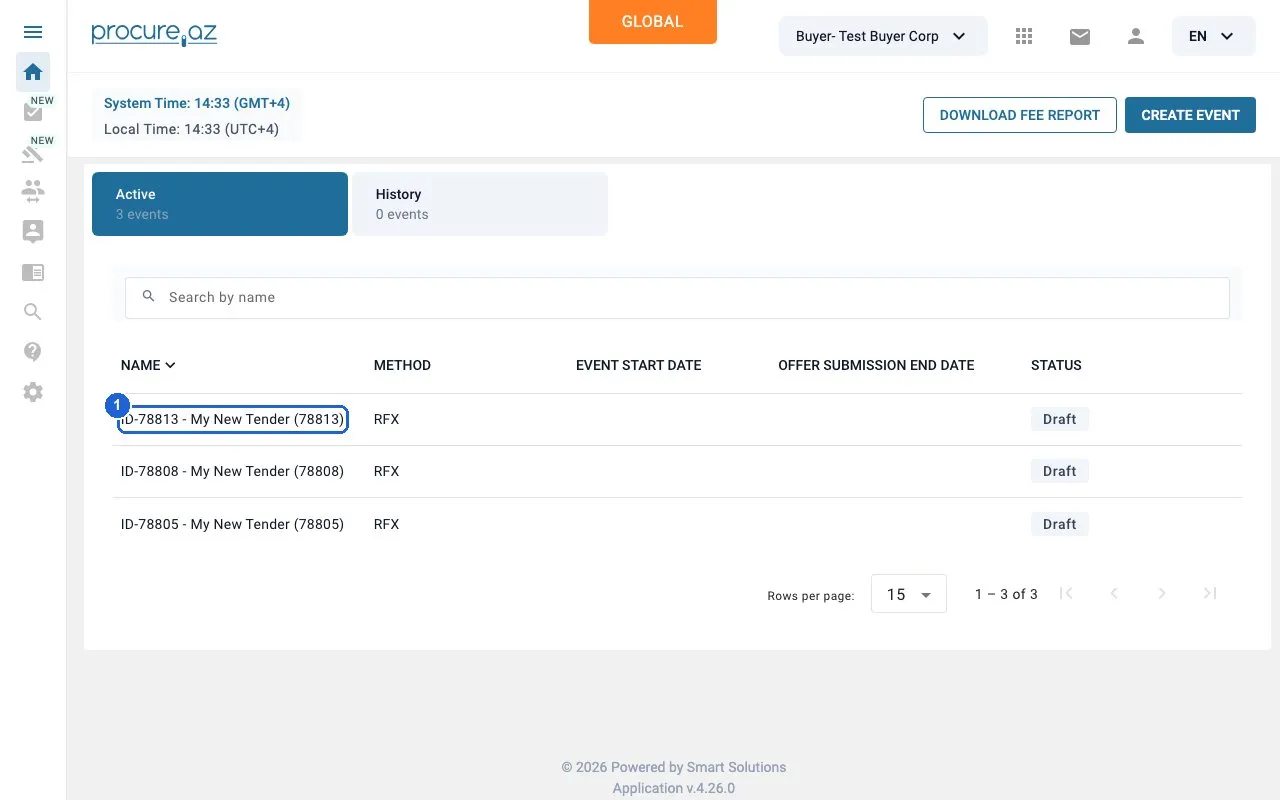
Step 1: Open the draft event — click “ID-78813 - My New Tender (78813)”. -
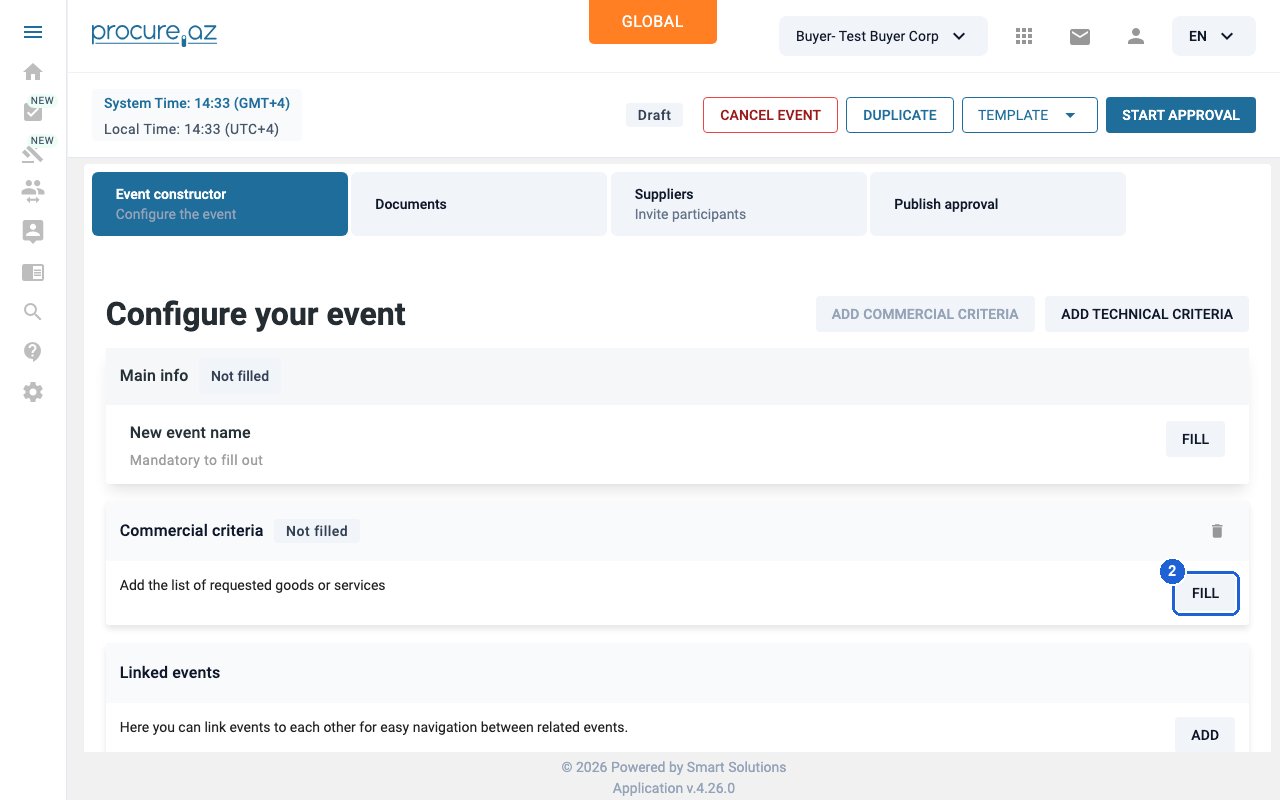
Open the Commercial criteria
On the Configure step, find the Commercial criteria card (“Add the list of requested goods or services”) and click FILL.
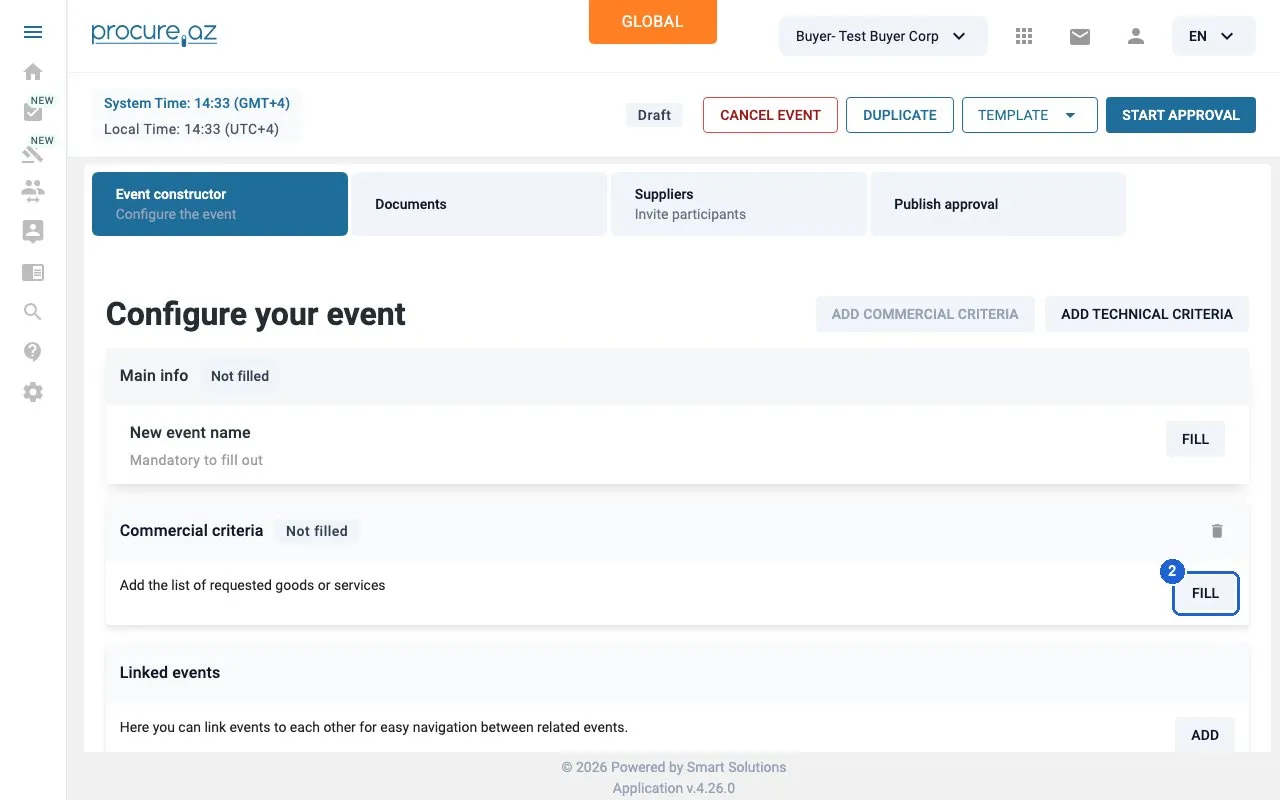
Step 2: Open the Commercial criteria — click “FILL”. -
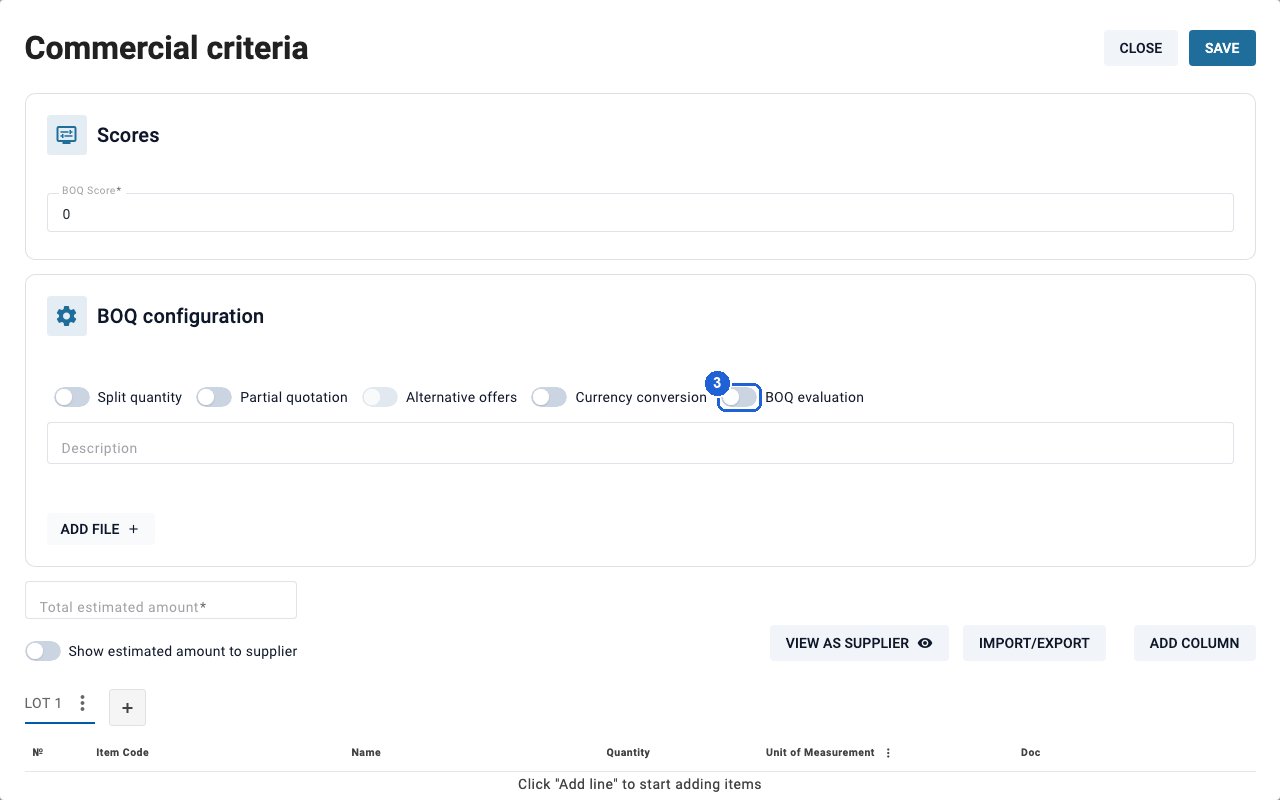
Turn on BOQ evaluation
In the Commercial criteria panel, under BOQ configuration, switch on “BOQ evaluation”.
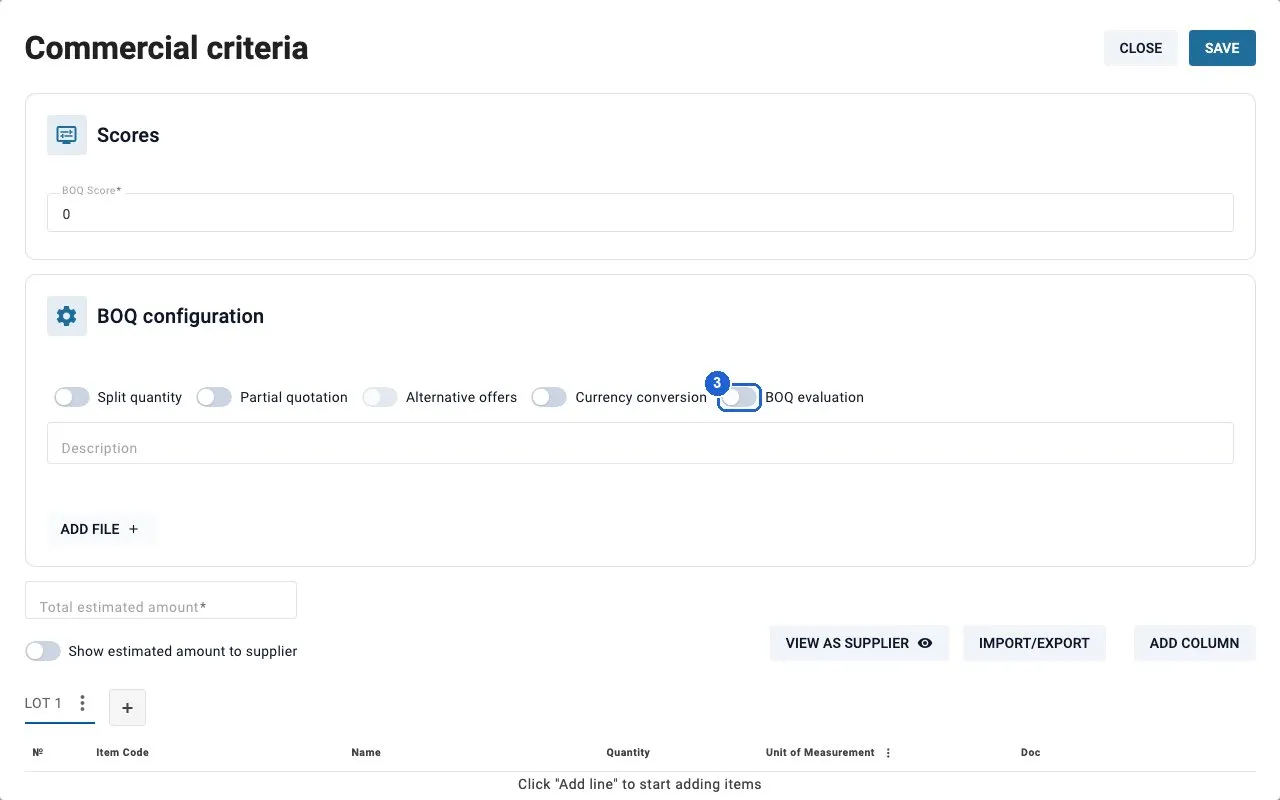
Step 3: Turn on BOQ evaluation. -
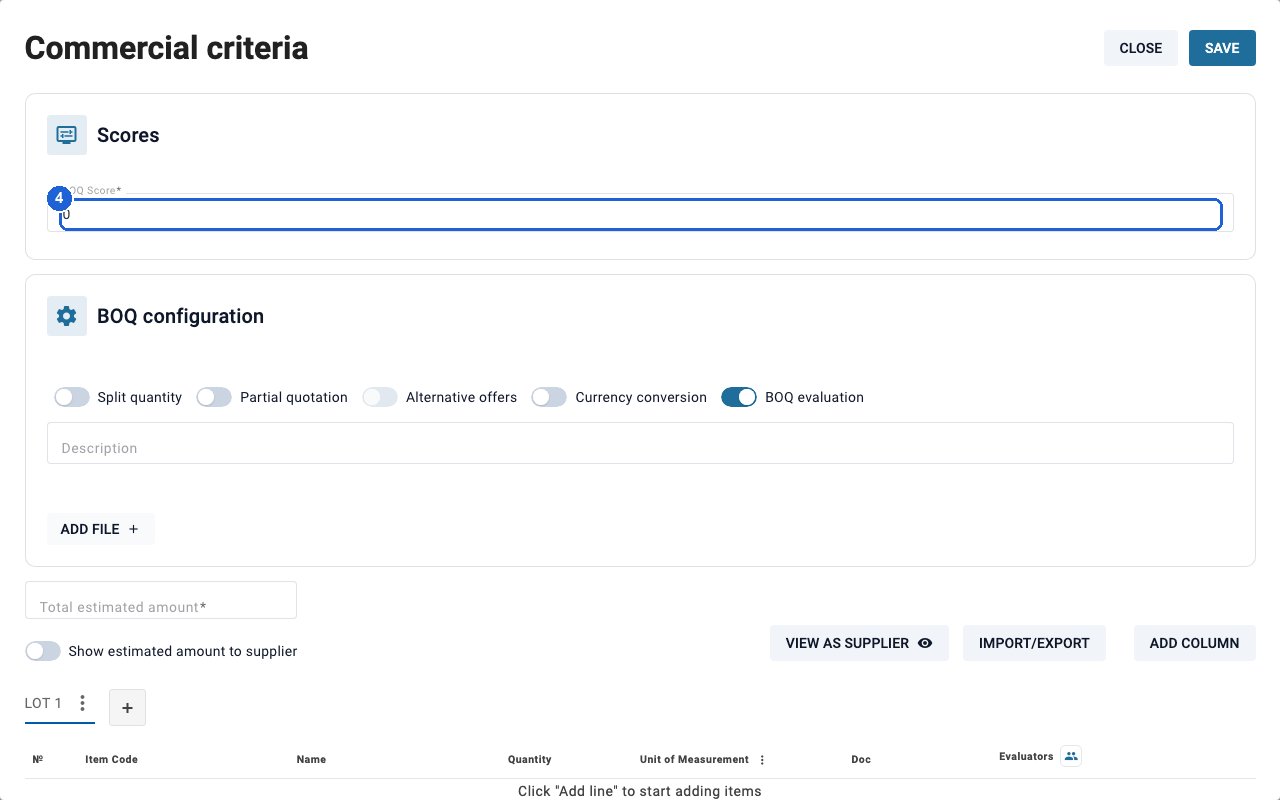
Fill in the required fields
If they are empty, fill in the required fields BOQ Score (under Scores) and Total estimated amount, and add your BOQ lines.
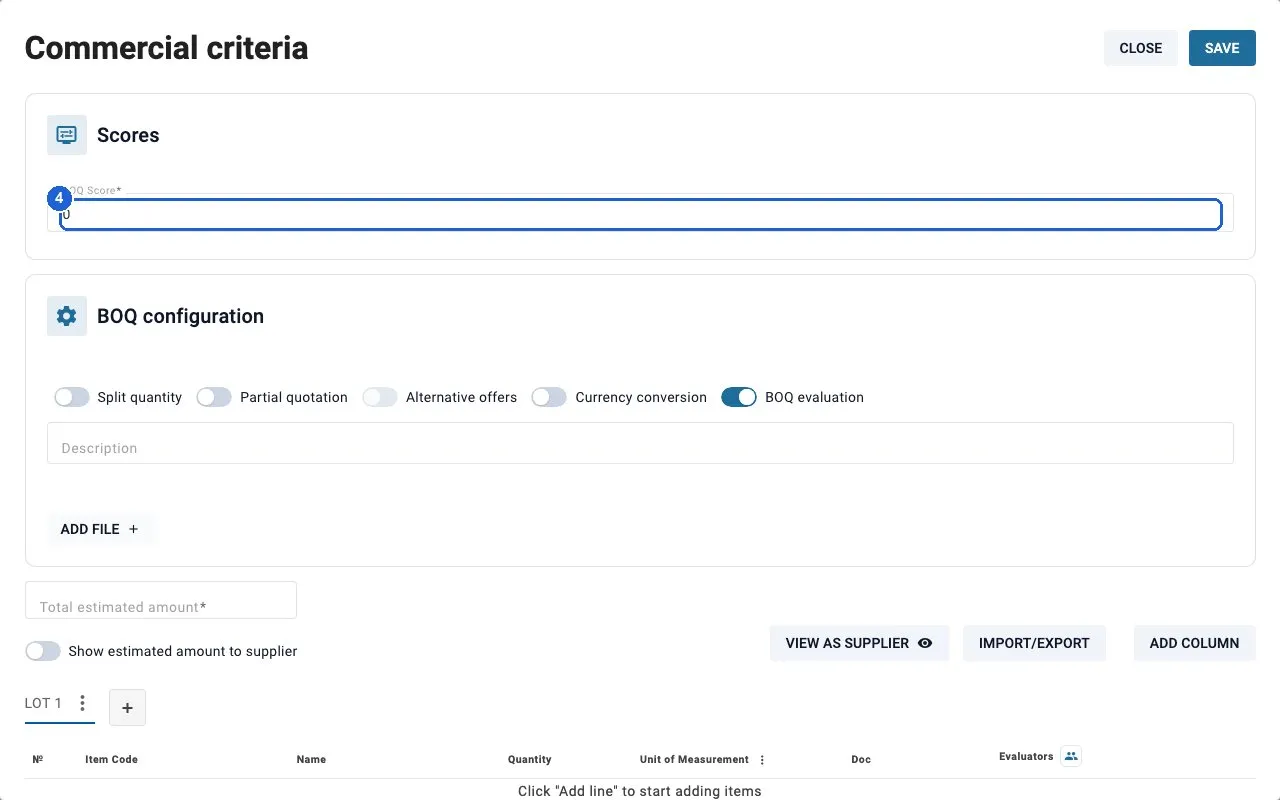
Step 4: Fill in the required fields — click “0”. -
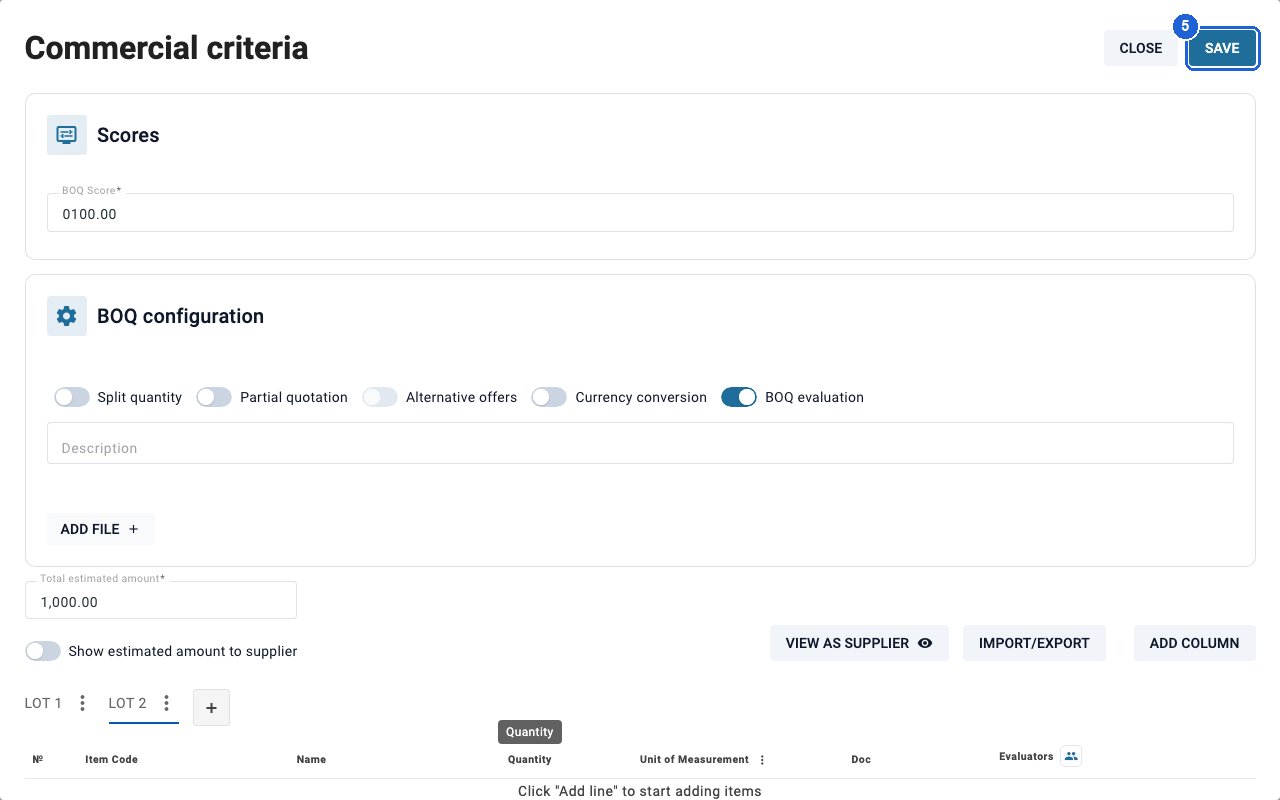
Save
Click SAVE at the top right of the panel. Reopen the panel with FILL at any time to check that BOQ evaluation is still on.
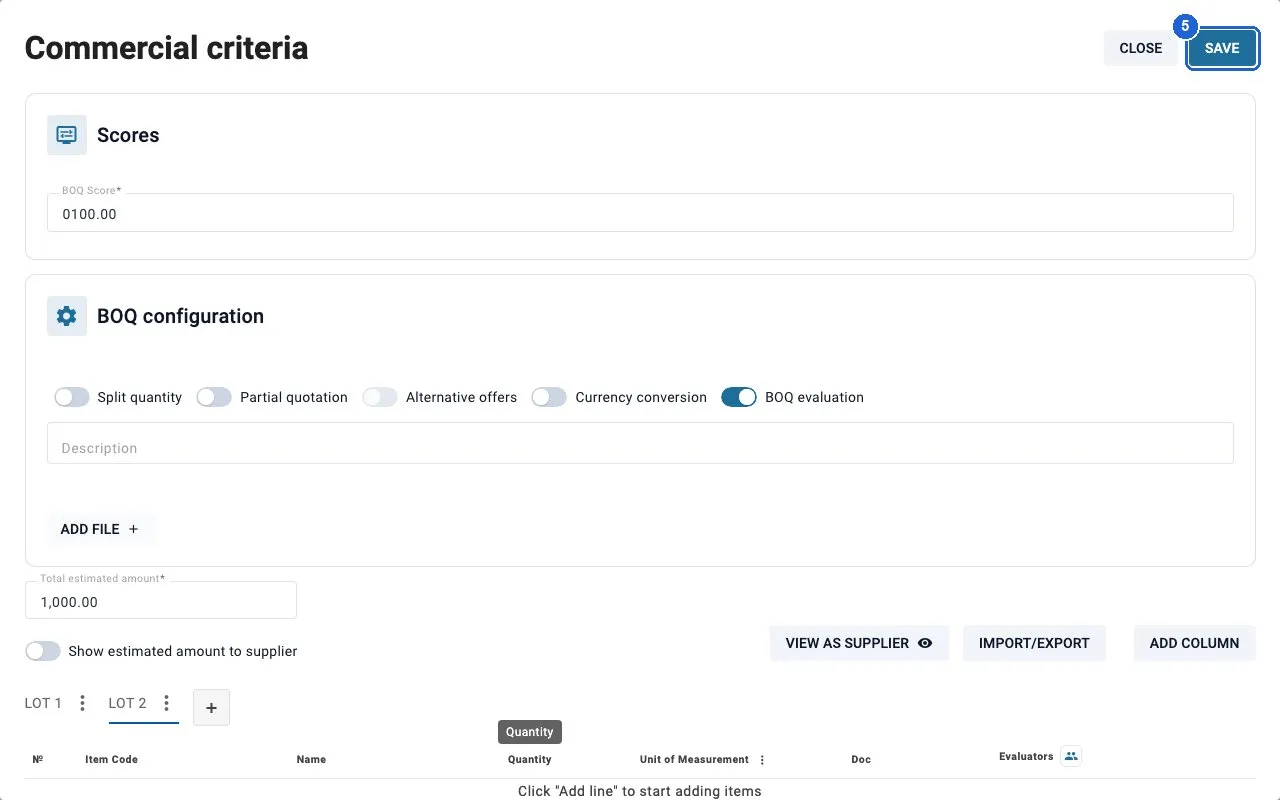
Step 5: Save — click “SAVE”.
Good to know
Section titled “Good to know”- The same BOQ configuration block also has the Split quantity, Partial quotation, Alternative offers and Currency conversion switches.
- SAVE requires the panel’s mandatory fields, such as BOQ Score and Total estimated amount.
- The Main info block (event name, dates) doesn’t need to be filled to change the commercial criteria.