

How can I create technical criteria?
Online version: https://help.allmaz.az/guides/sourcing/technical-criteria/
Technical criteria are added on the Configure step of a draft event: ADD TECHNICAL CRITERIA, then build sections and questions in the Technical criteria panel, assign evaluators and save.
-
Open the draft event
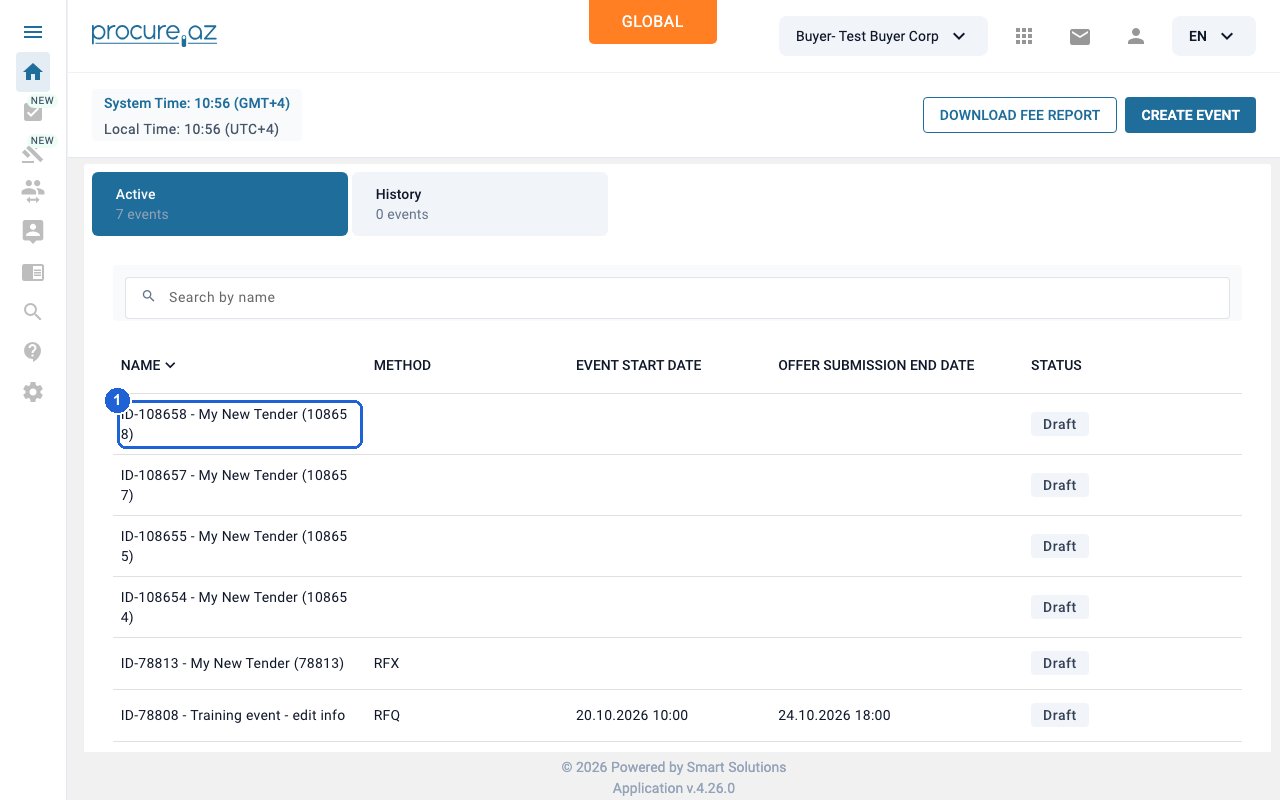
On the Sourcing dashboard, click the draft event (here “ID-108658”) to open it in the Event constructor.
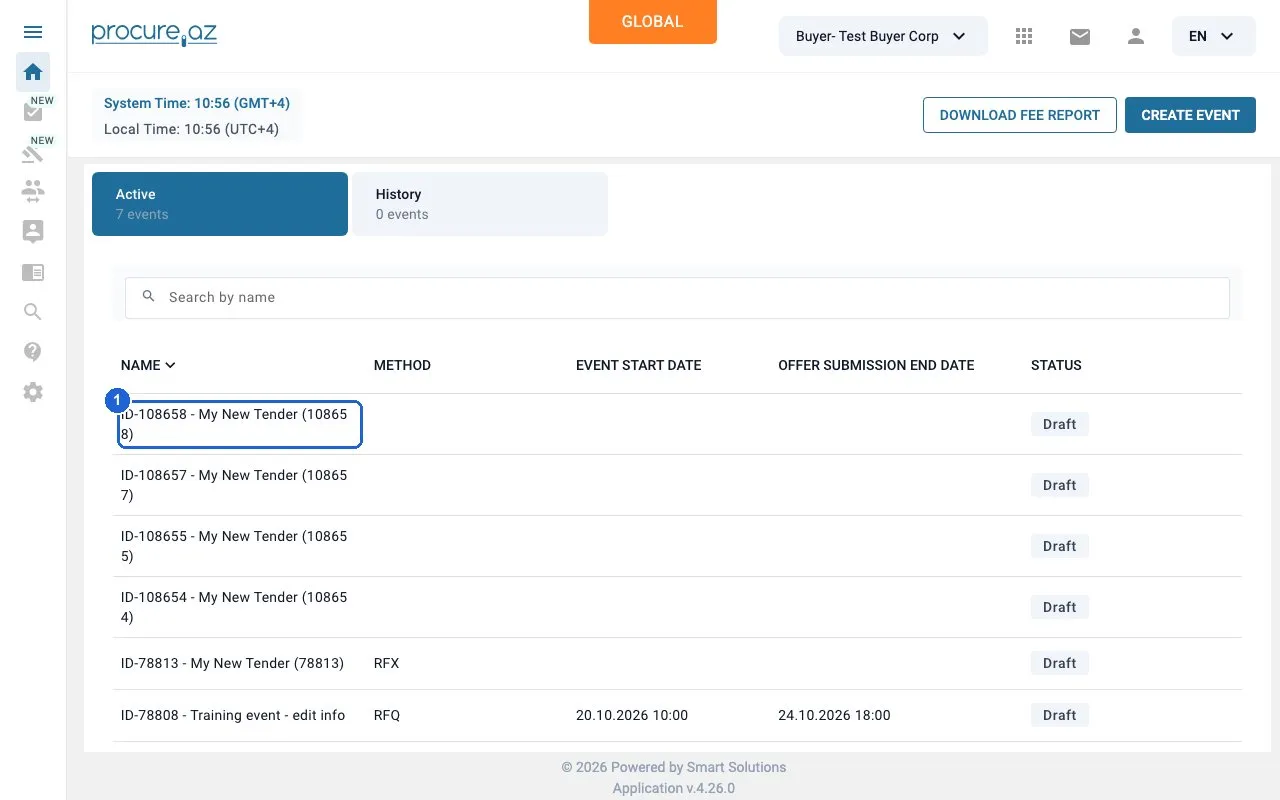
Step 1: Open the draft event — click “ID-108658 - My New Tender (108658)”. -
Add technical criteria
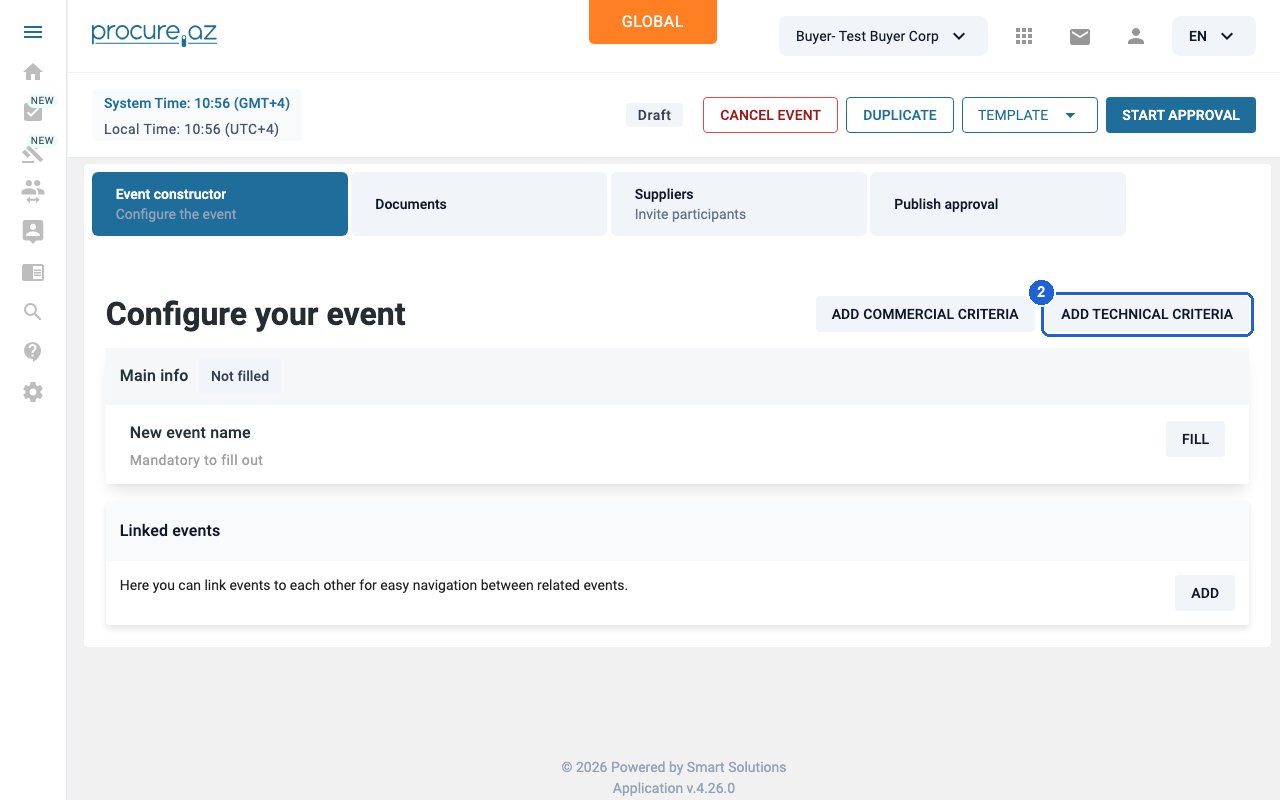
On the Configure step, click ADD TECHNICAL CRITERIA at the top right. A “Technical criteria” card is added to the event.
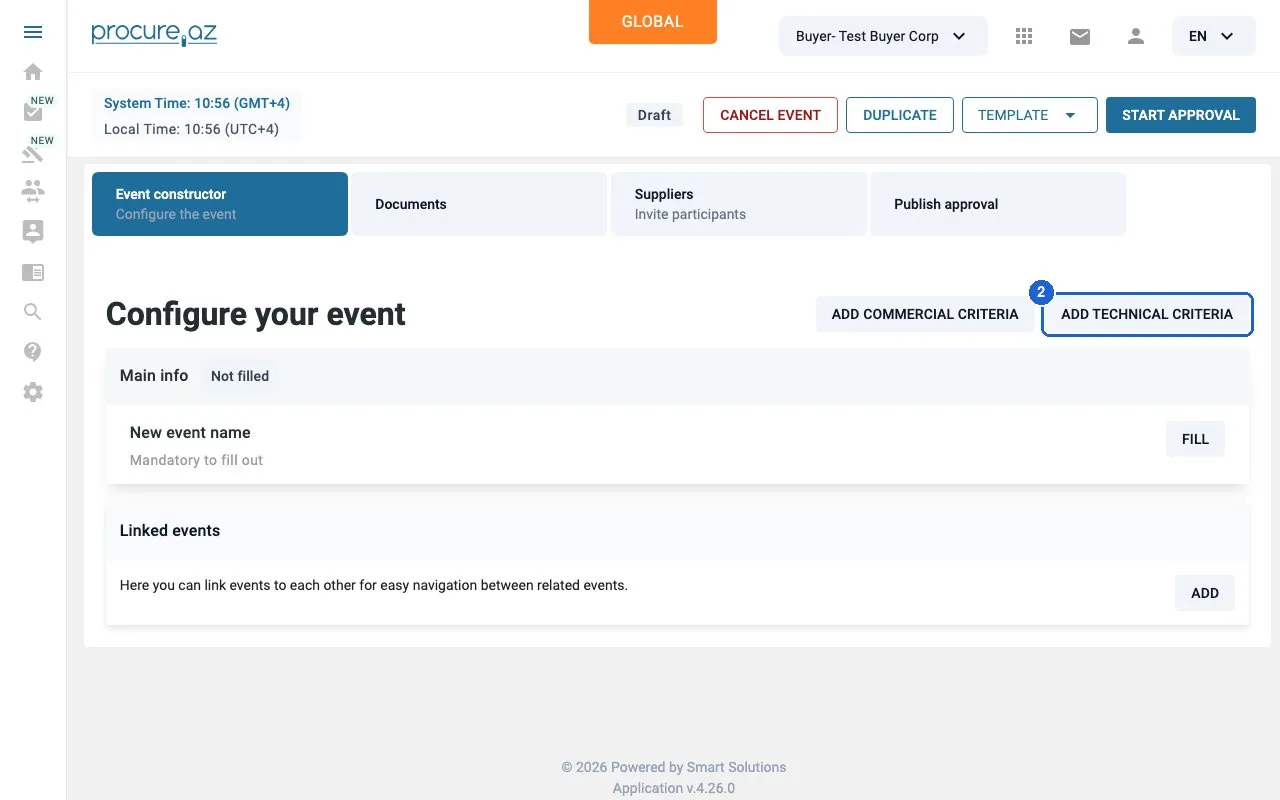
Step 2: Add technical criteria — click “ADD TECHNICAL CRITERIA”. -
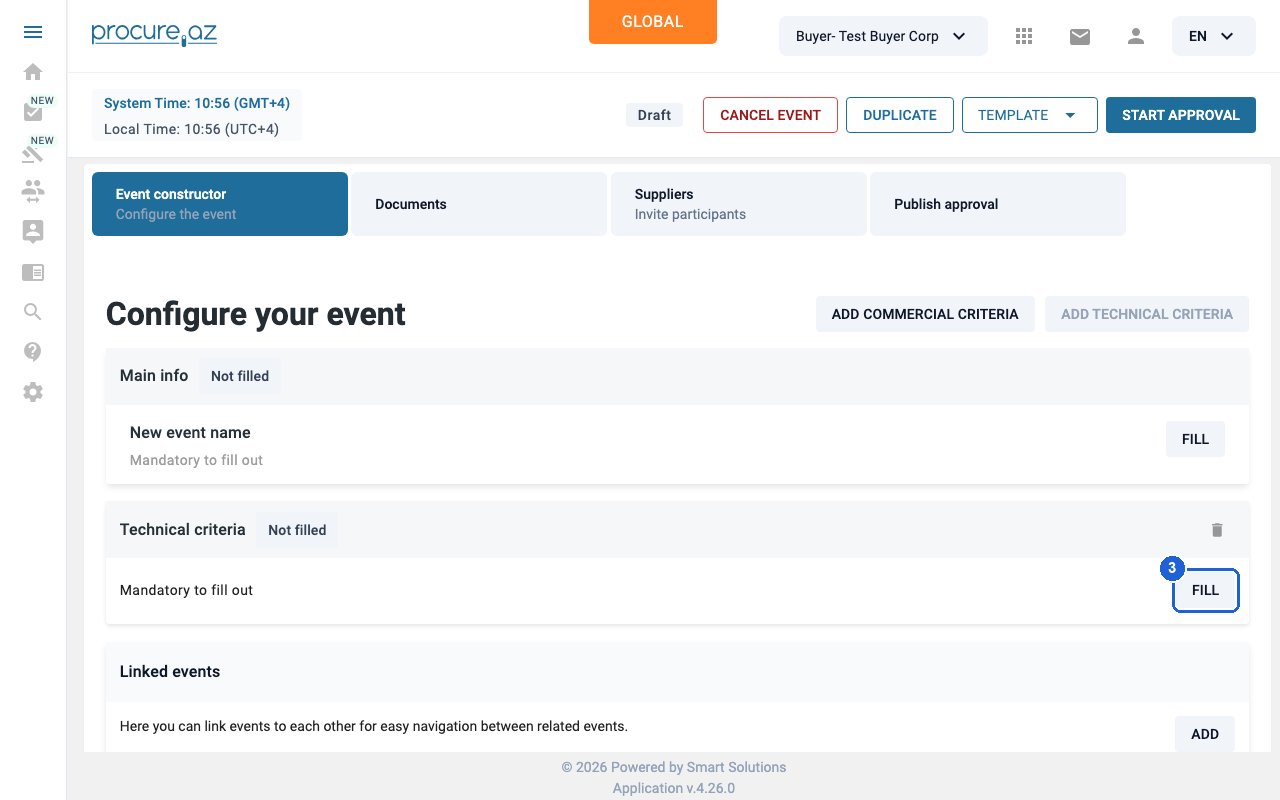
Open the technical criteria
Click FILL on the Technical criteria card (“Mandatory to fill out”). Take care: the first FILL on the page belongs to Main info.
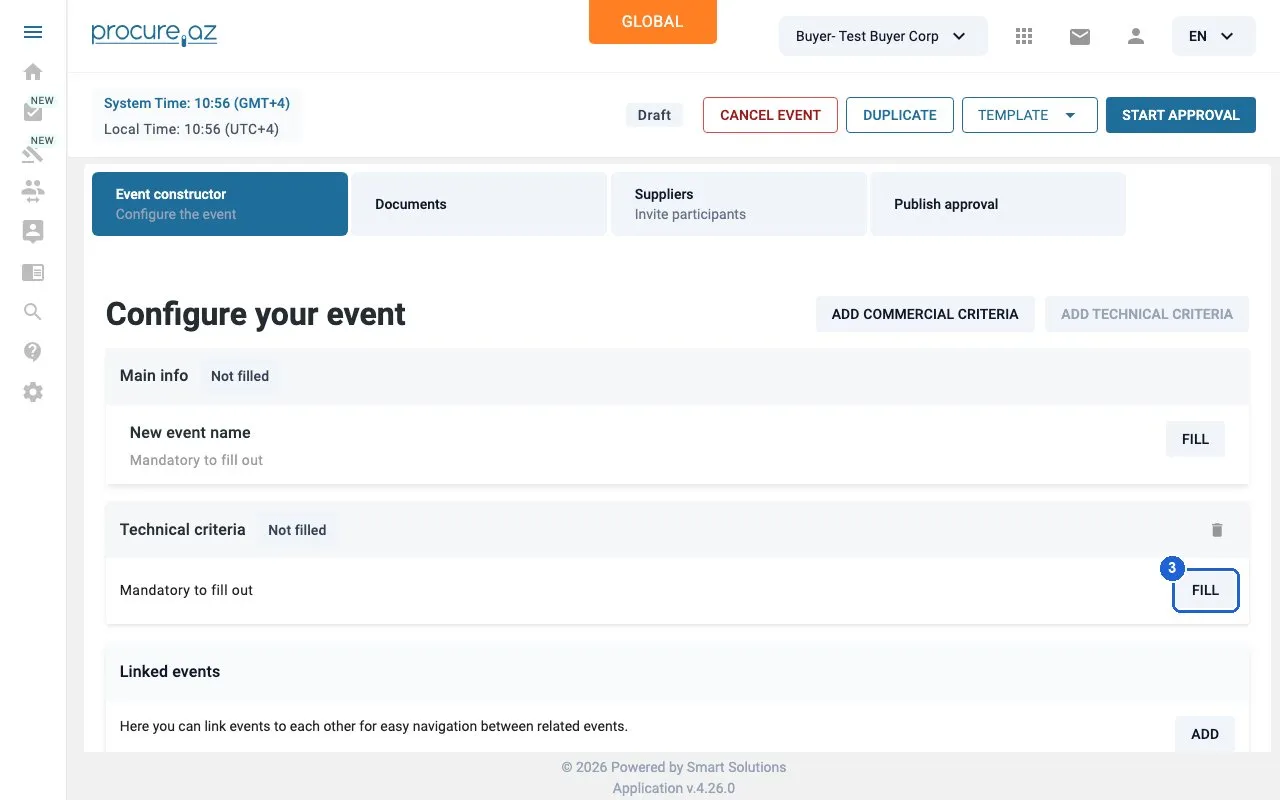
Step 3: Open the technical criteria — click “FILL”. -
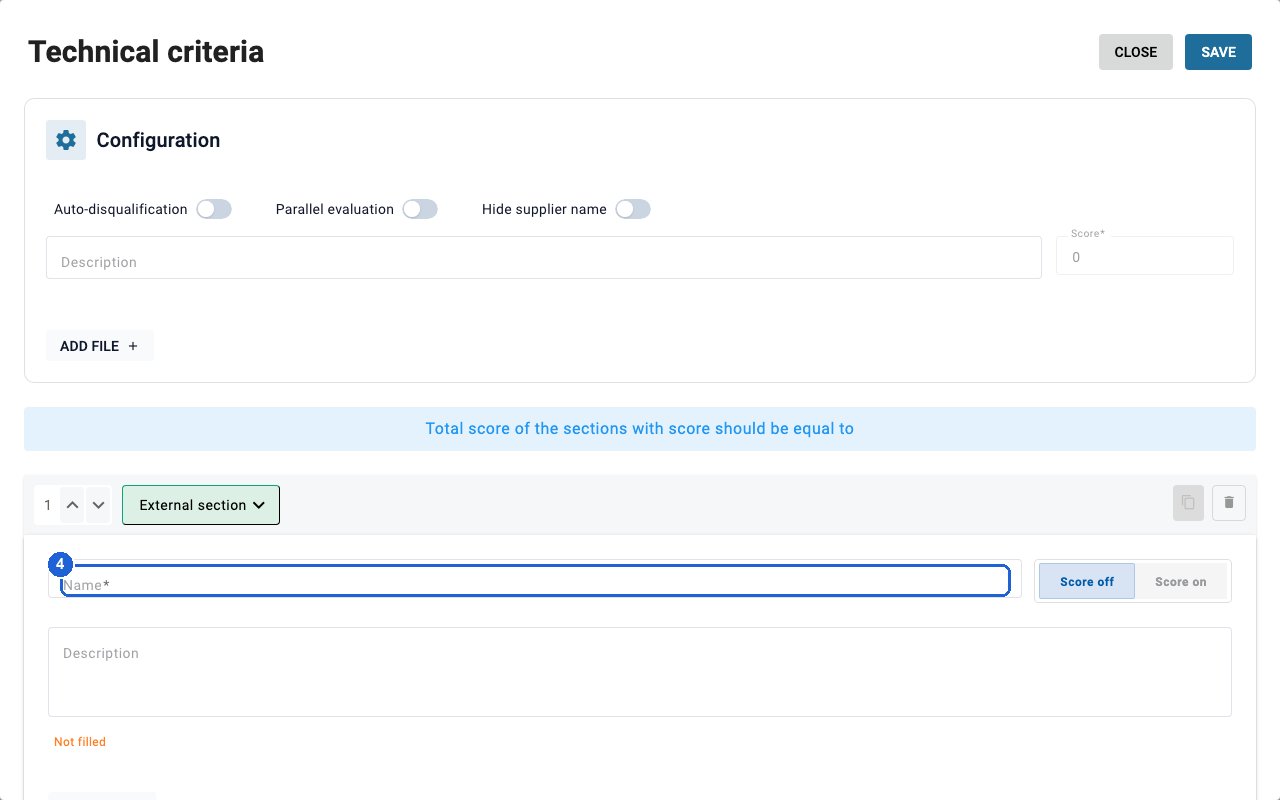
Name the section
Section 1 is already there. Type its name in Name* (here “Test section”).
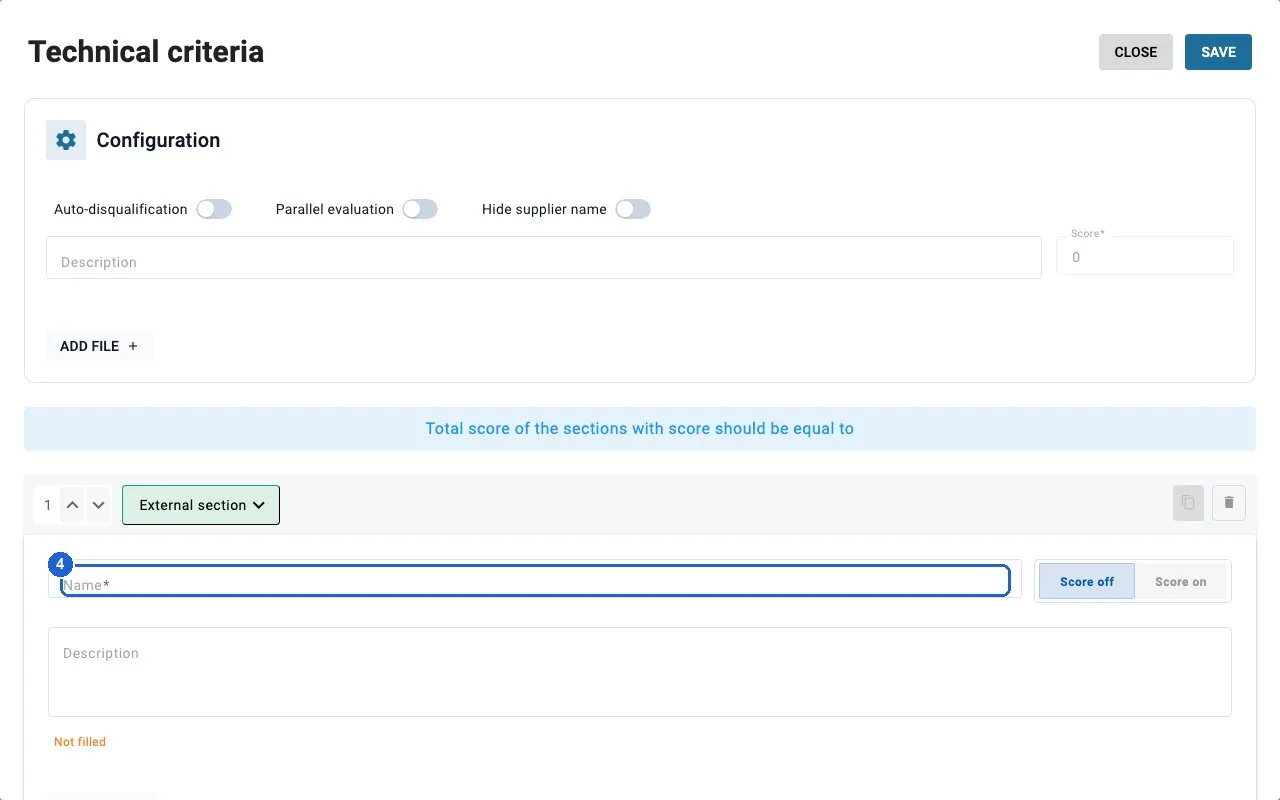
Step 4: Name the section. -
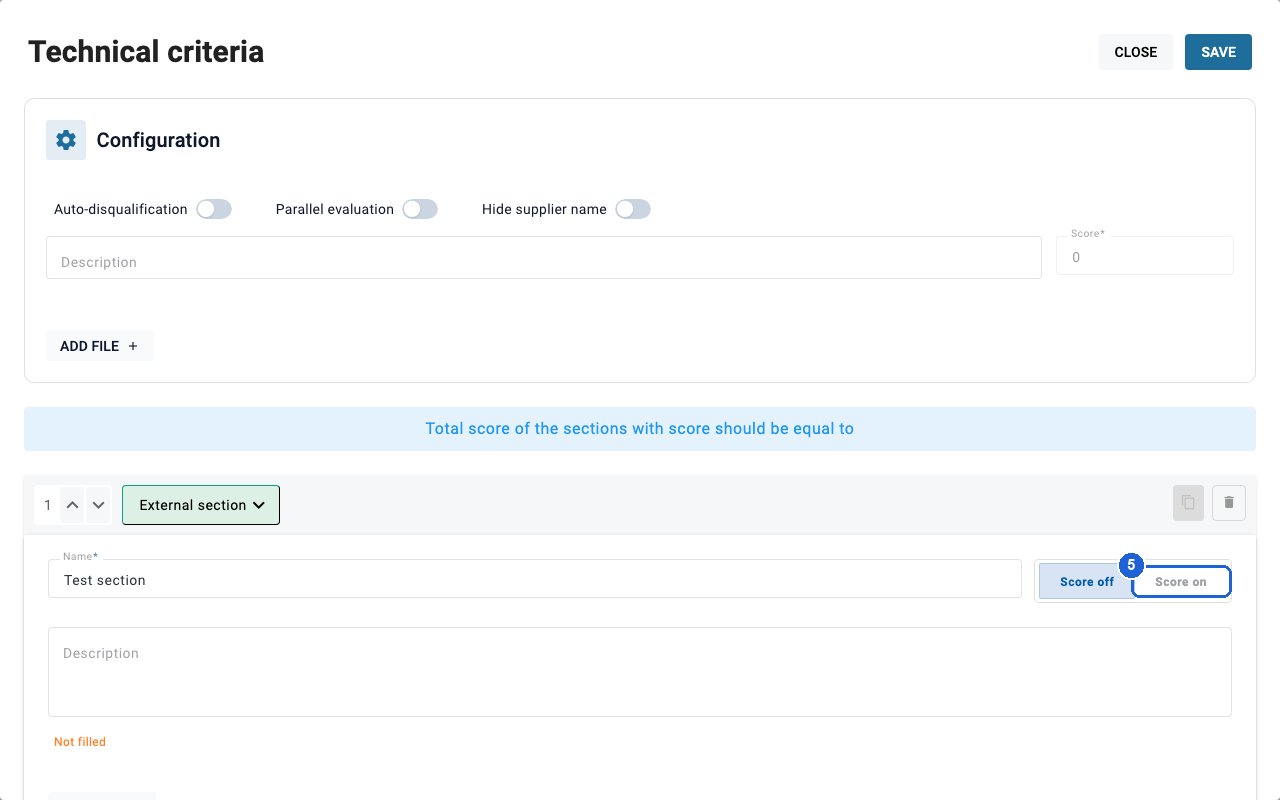
Turn on scoring
Click “Score on” next to the name. A Score field appears for the section.
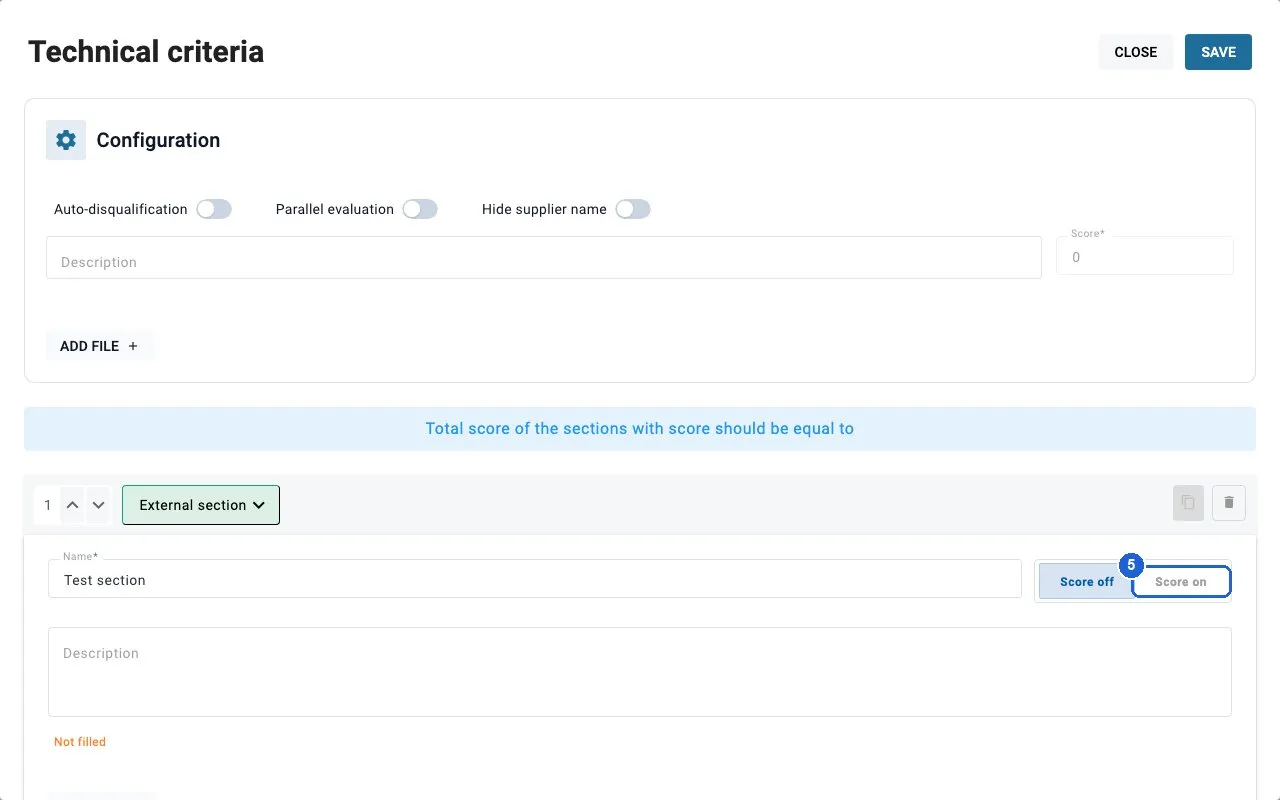
Step 5: Turn on scoring — click “Score on”. -
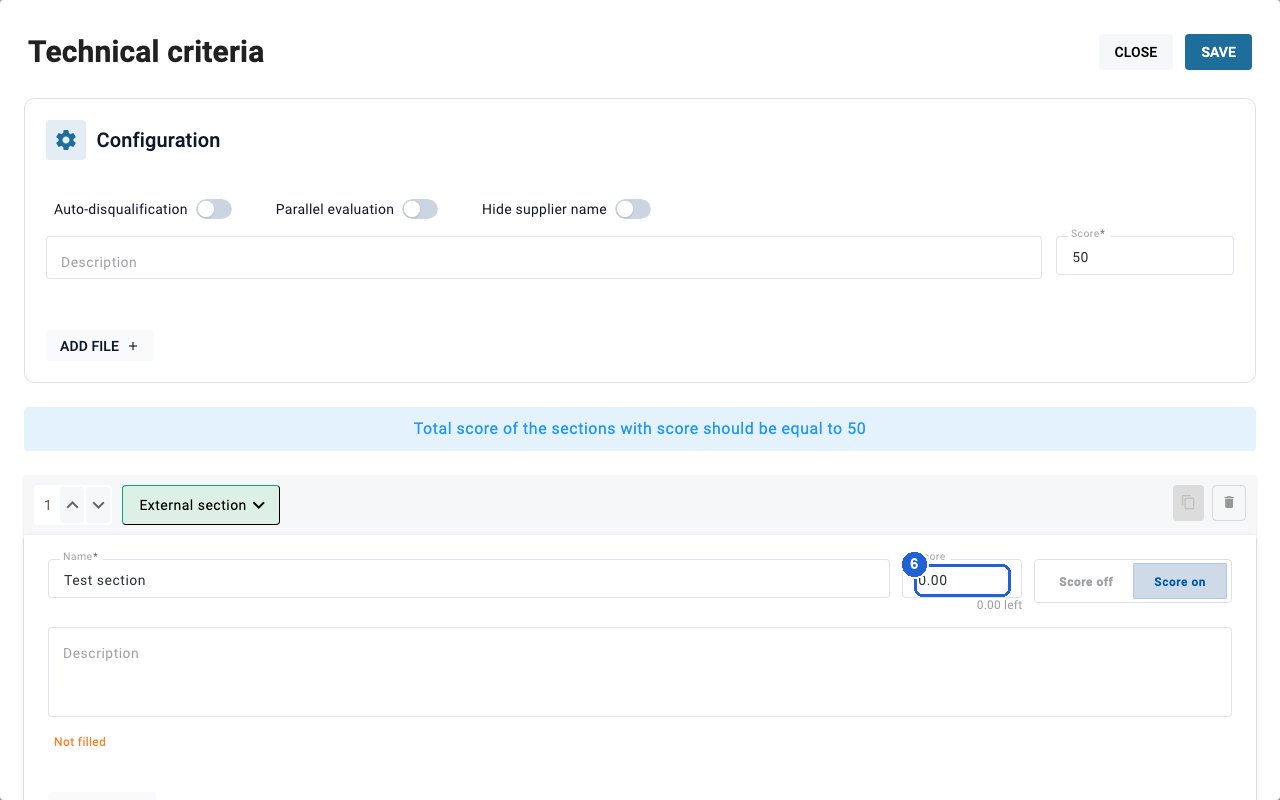
Give the section its score
Type the section’s score (here 50). The banner above the section tells you how many points the scored sections must add up to.
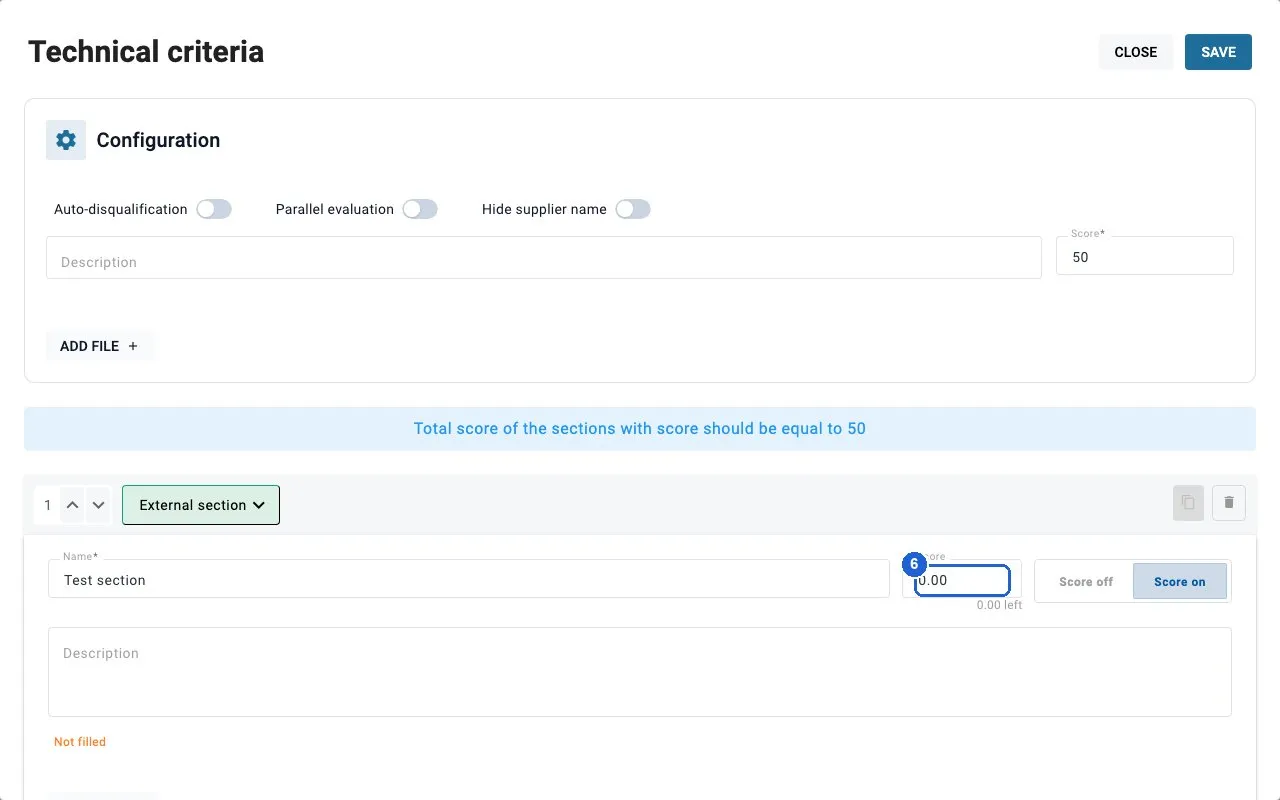
Step 6: Give the section its score. -
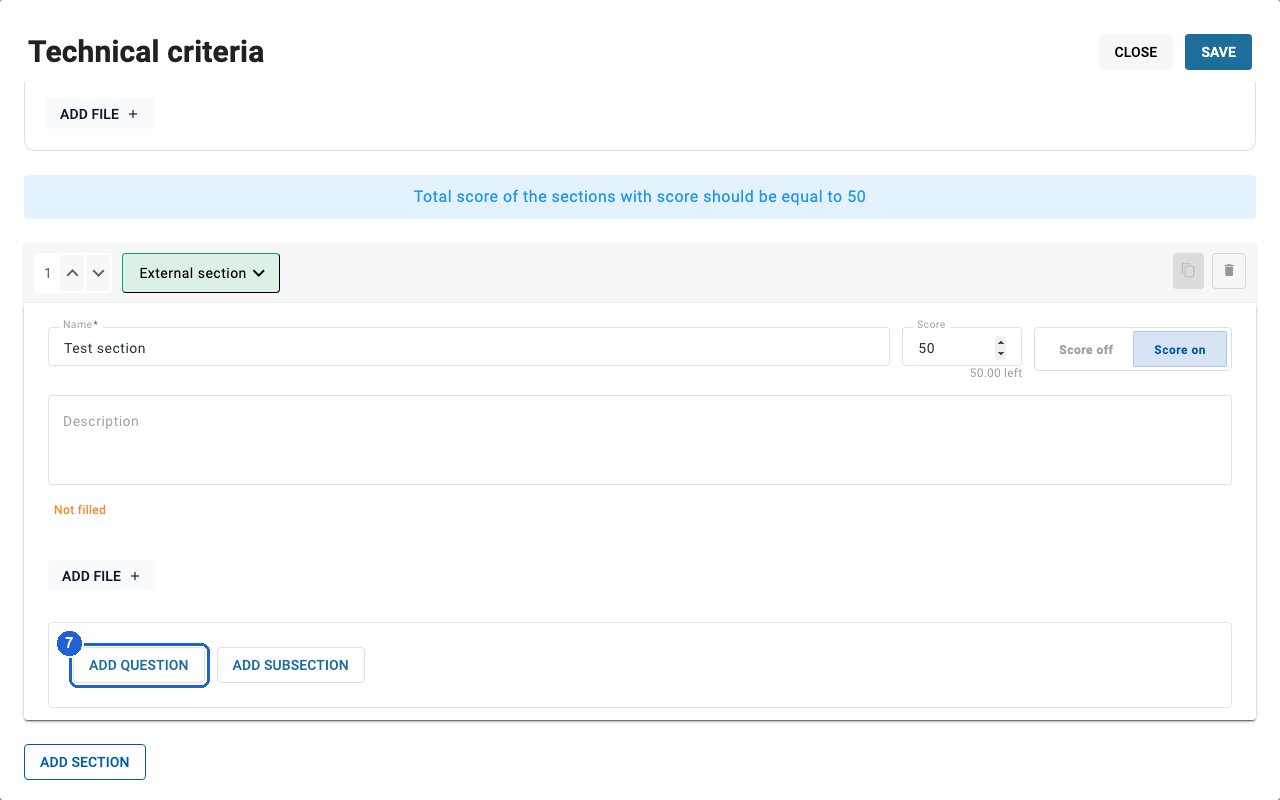
Add a question
Scroll down and click ADD QUESTION.
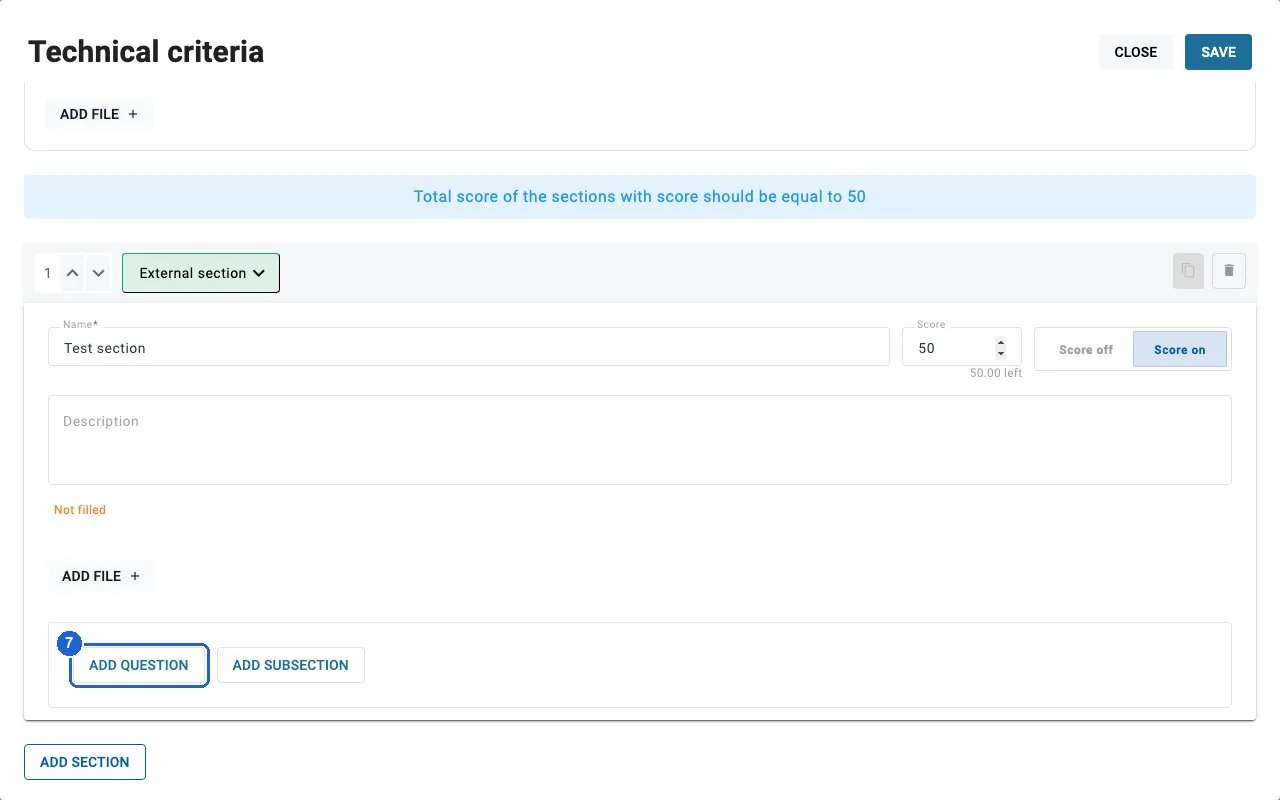
Step 7: Add a question — click “ADD QUESTION”. -
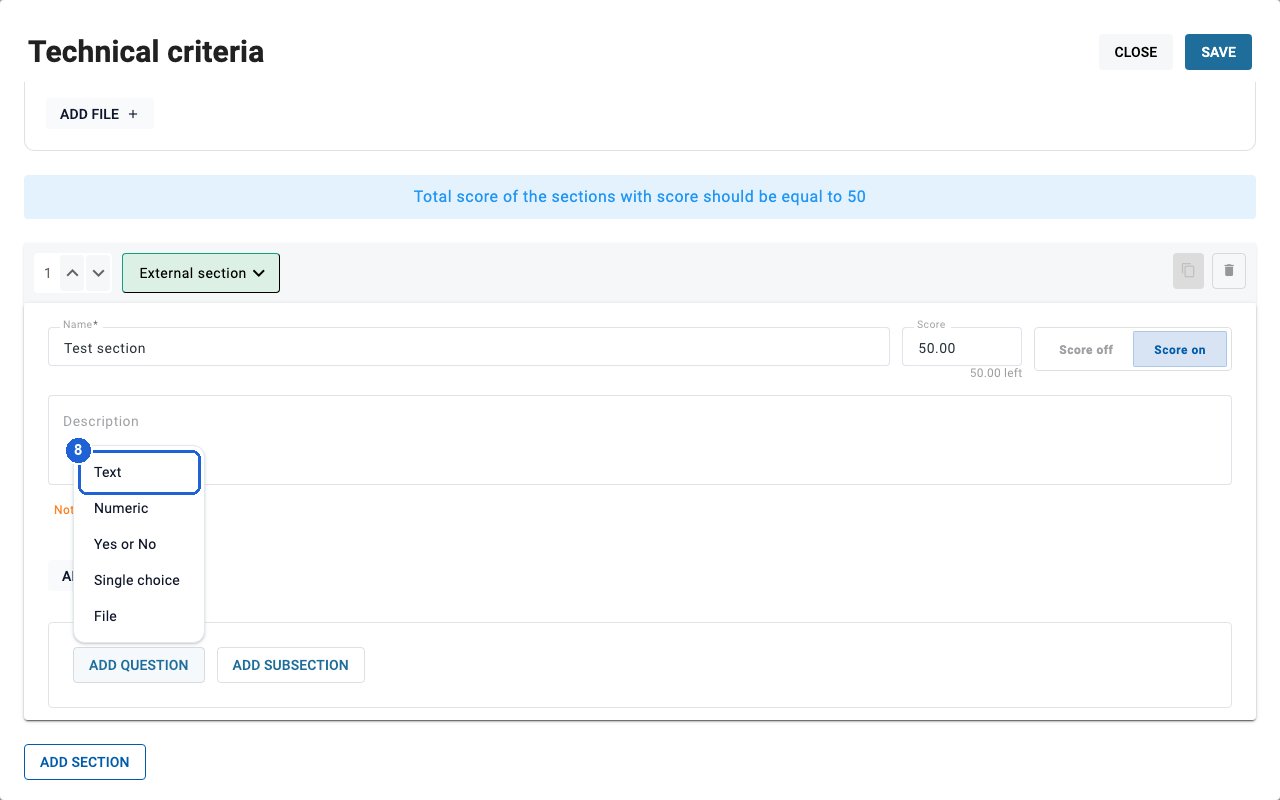
Choose the question type
Pick the type of answer you expect: Text, Numeric, Yes or No, Single choice or File (here Text).
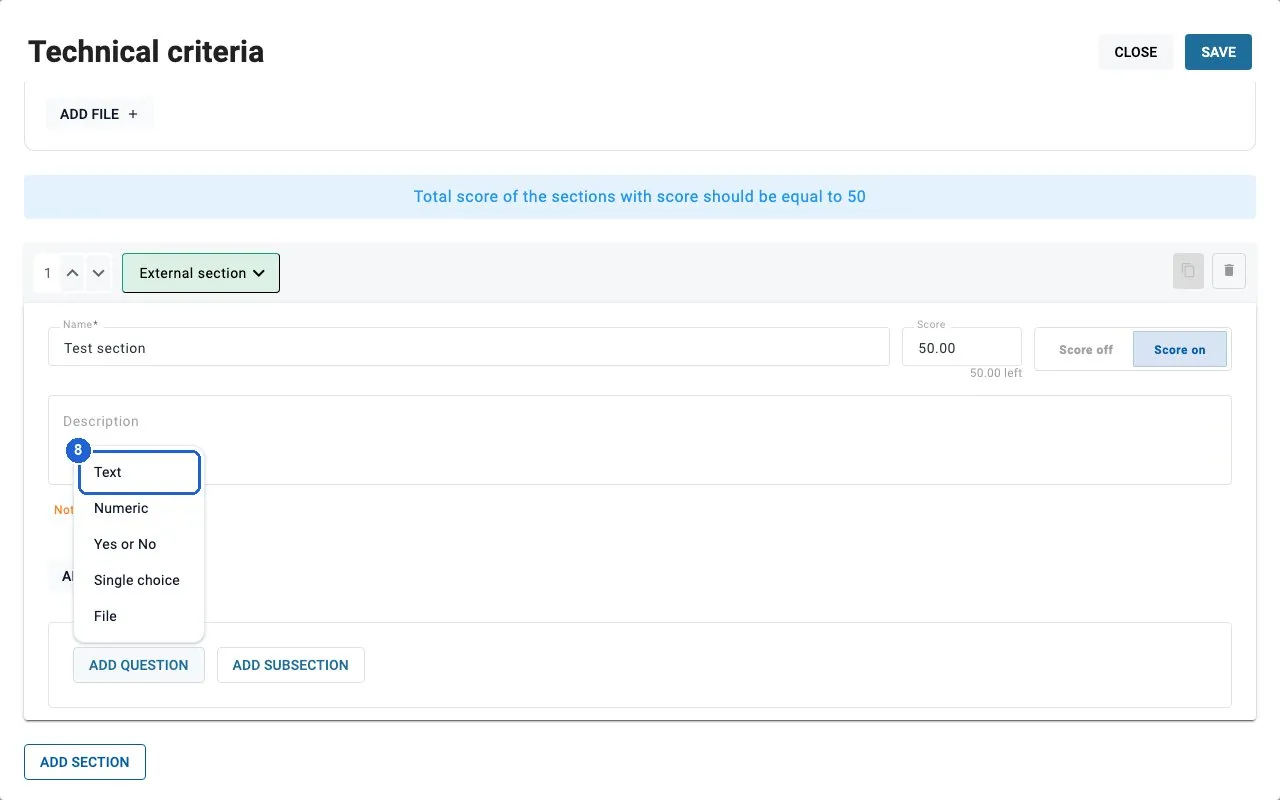
Step 8: Choose the question type — click “Text”. -
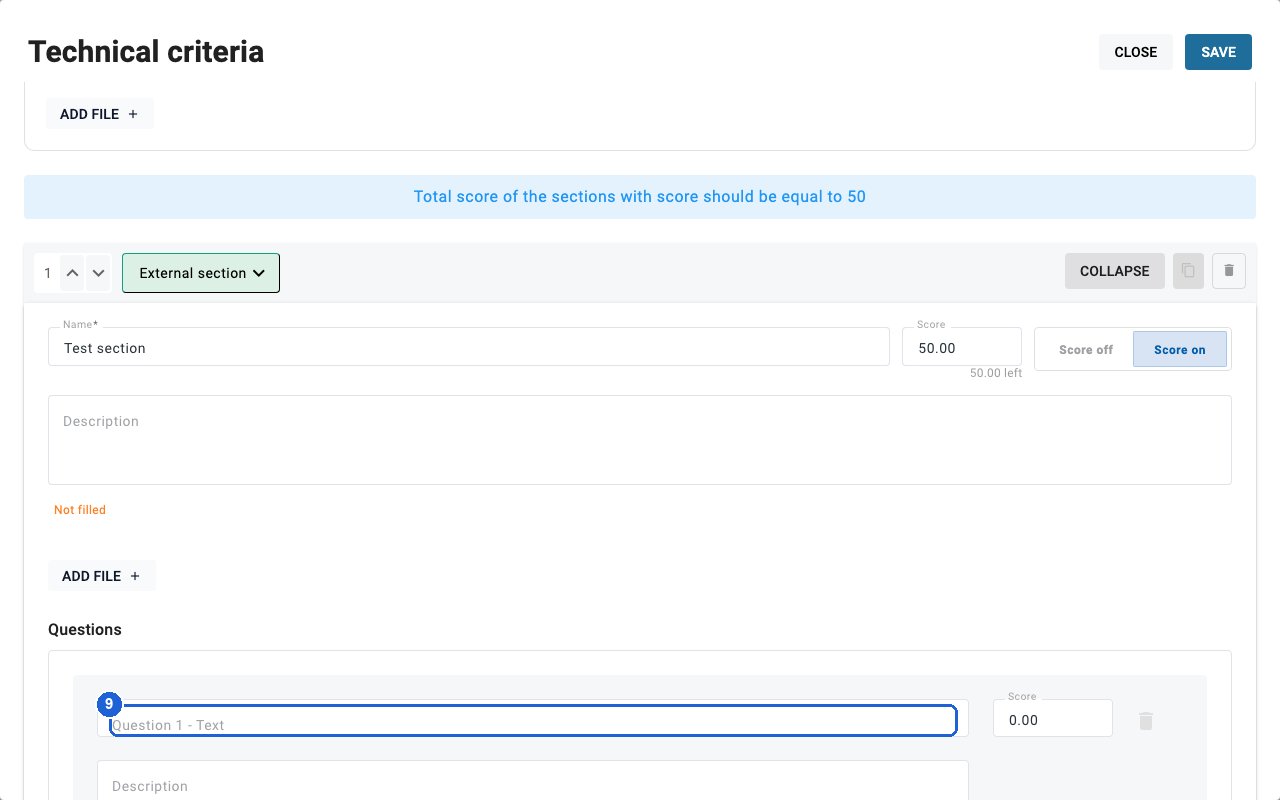
Write the question
Type the question suppliers will answer (here “Describe your relevant experience”).
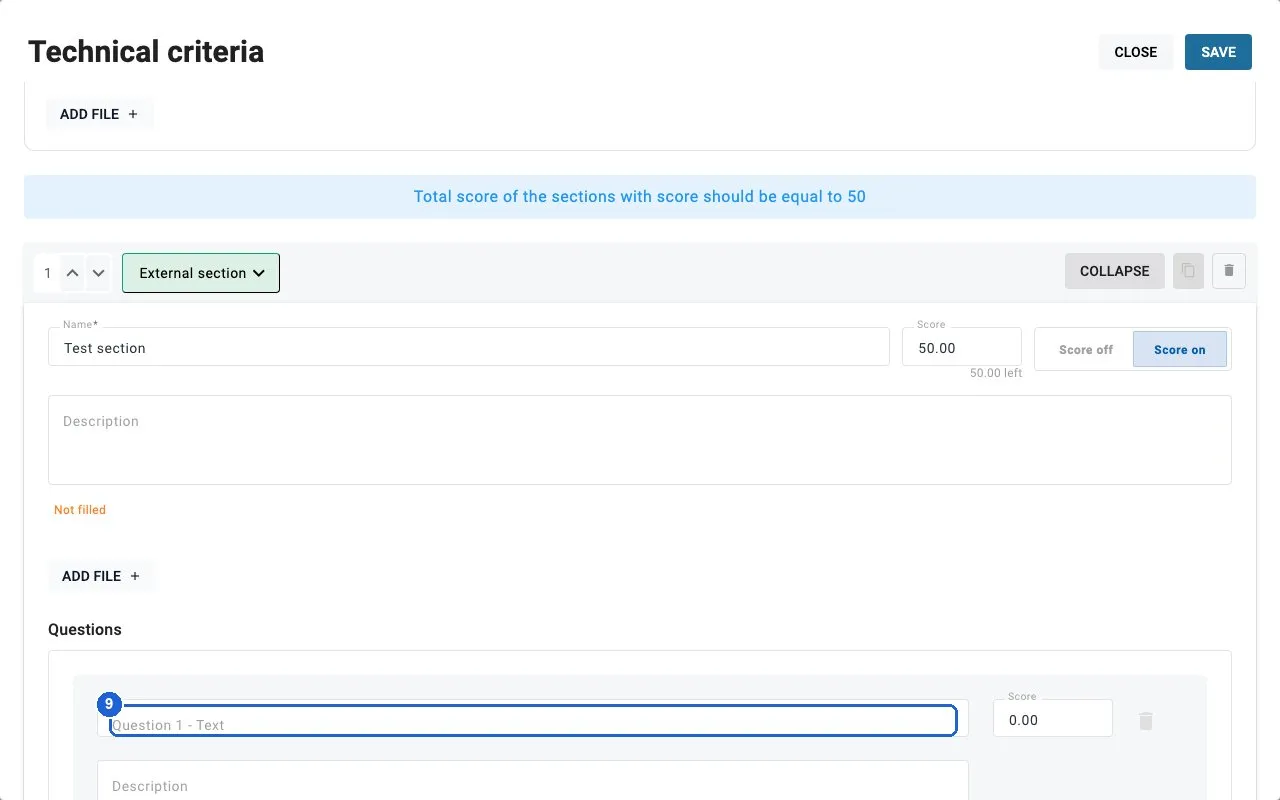
Step 9: Write the question. -
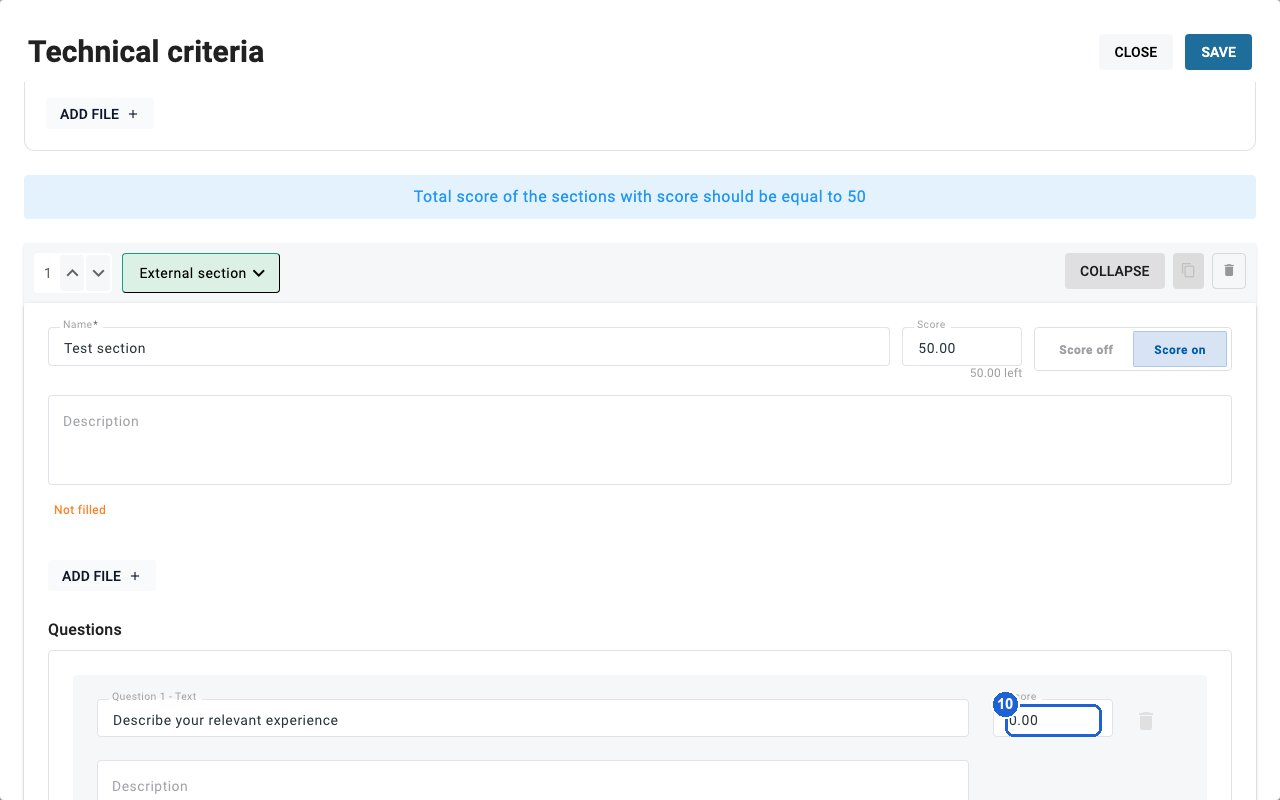
Score the question
Type the question’s score in its Score field (here 50, the whole section).
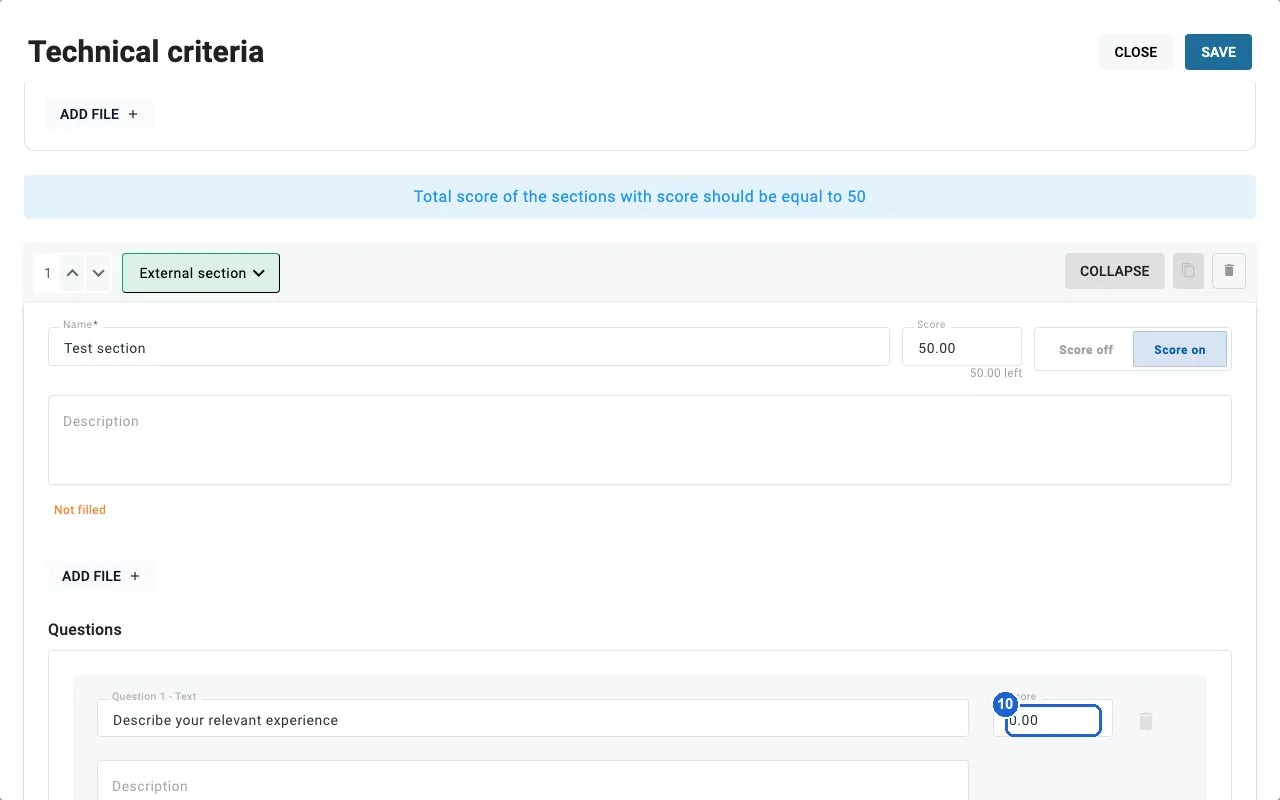
Step 10: Score the question. -
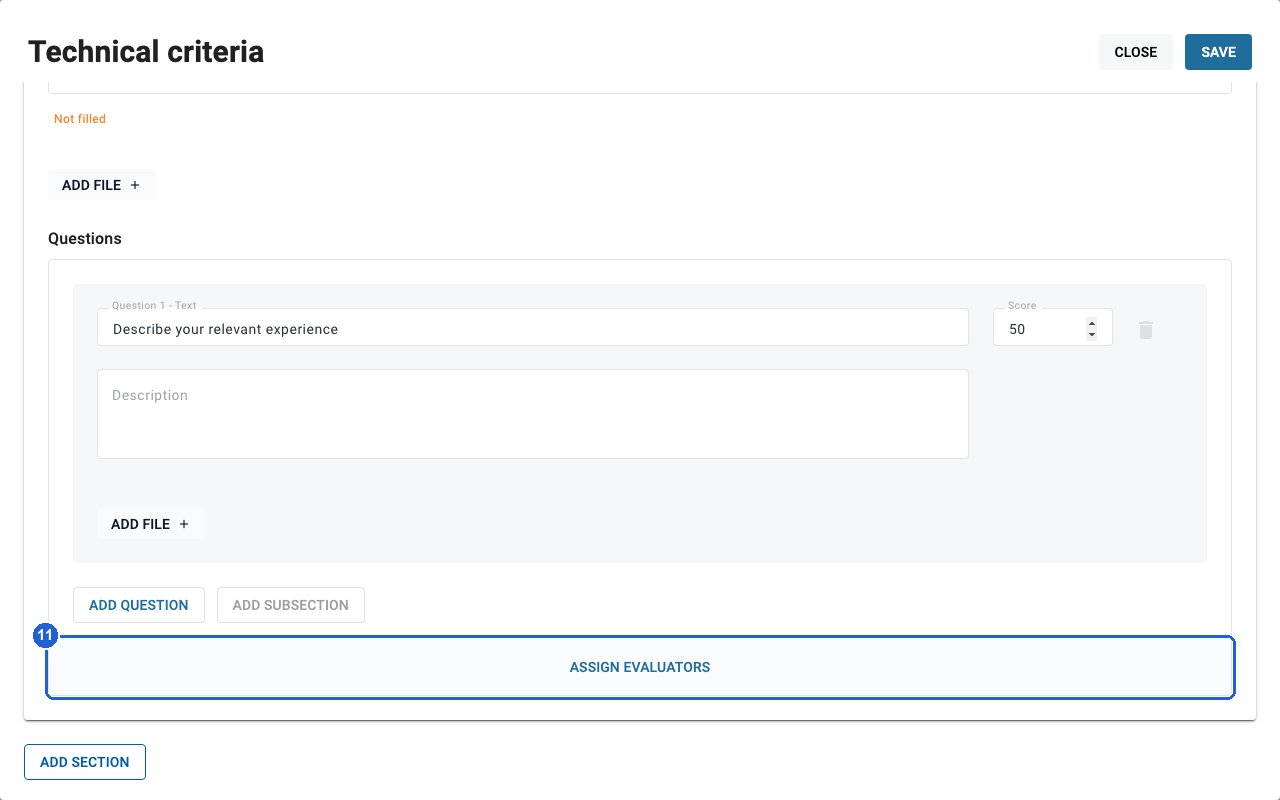
Assign evaluators
Click ASSIGN EVALUATORS at the bottom of the section.
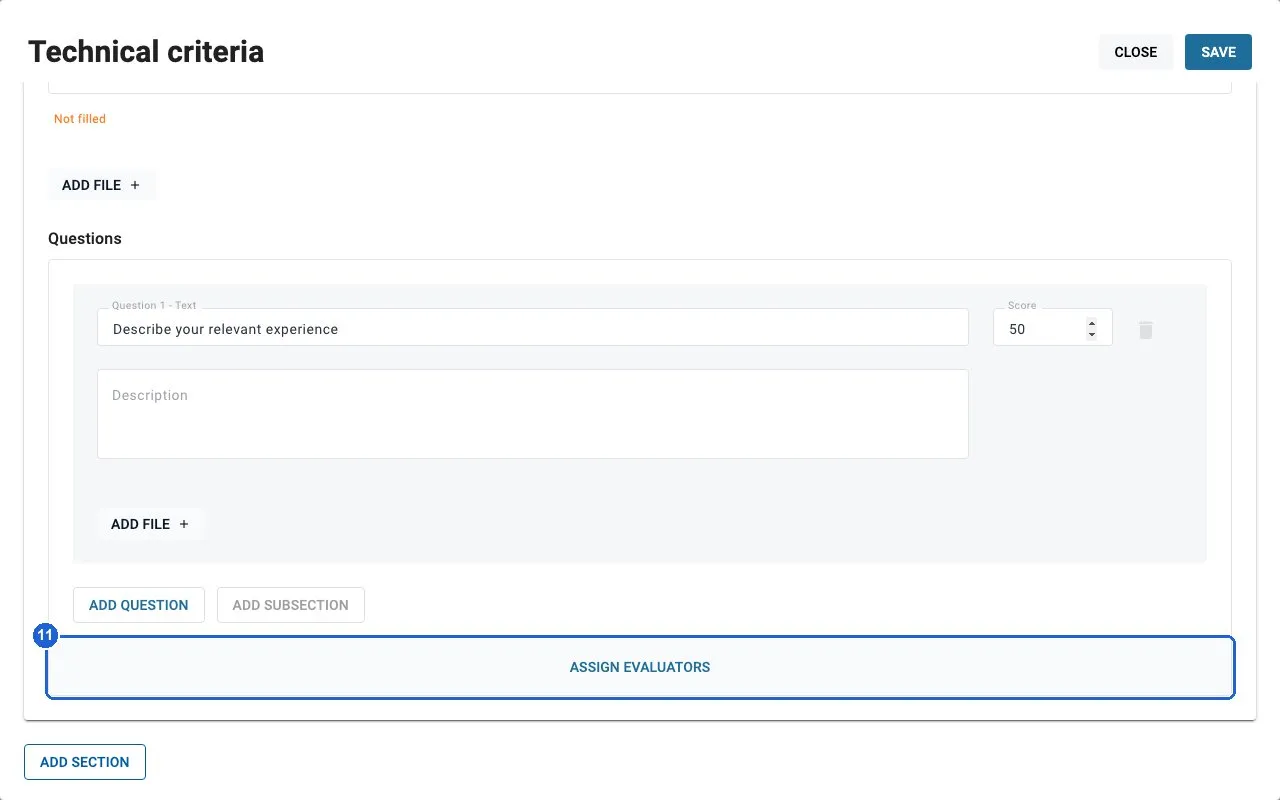
Step 11: Assign evaluators — click “ASSIGN EVALUATORS”. -
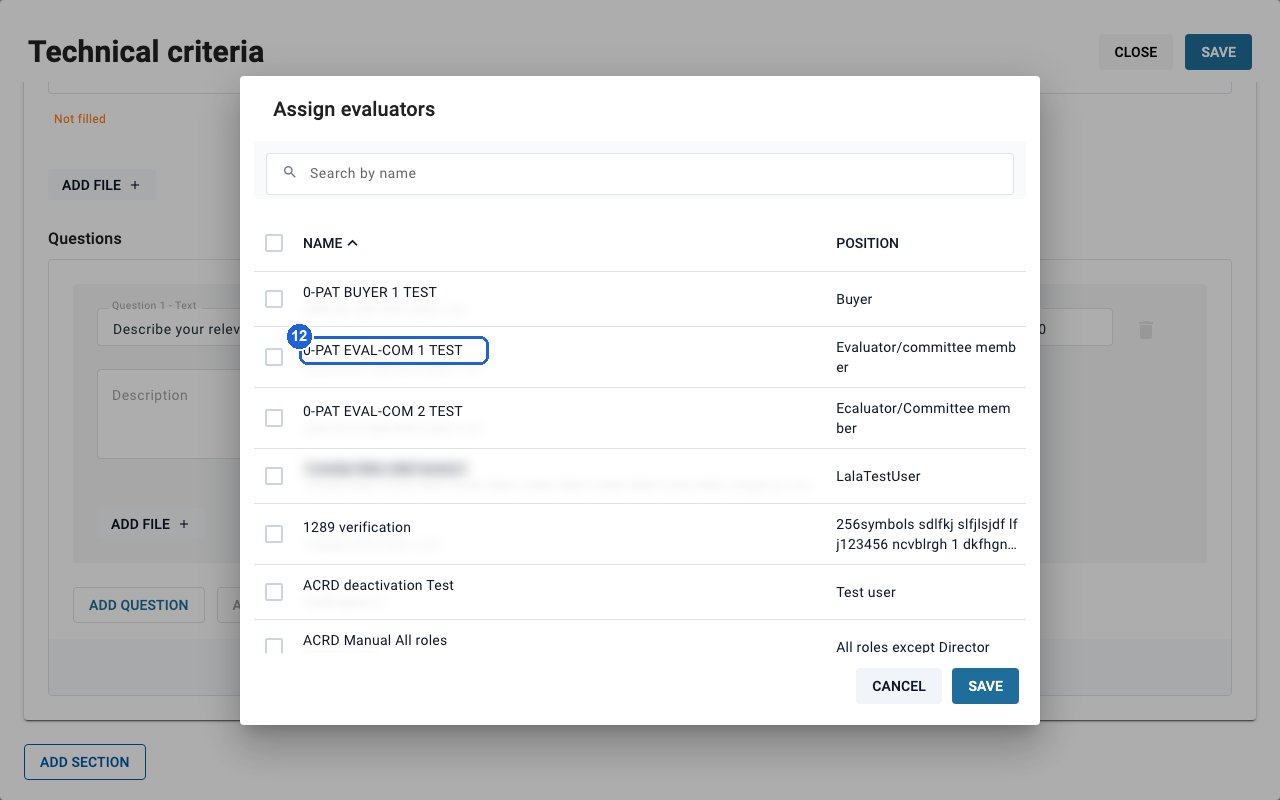
Choose the evaluators
In Assign evaluators, tick each person who will evaluate this section (use Search by name to find them).
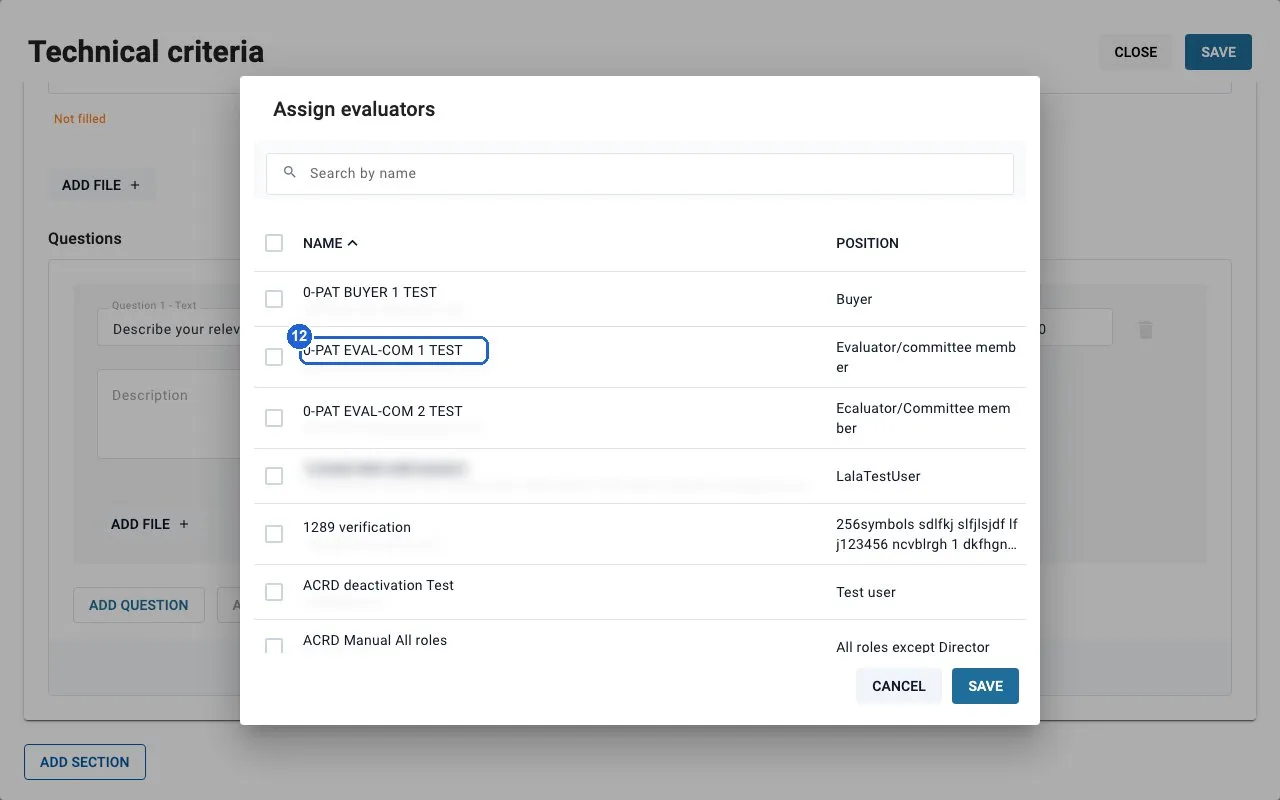
Step 12: Choose the evaluators. -
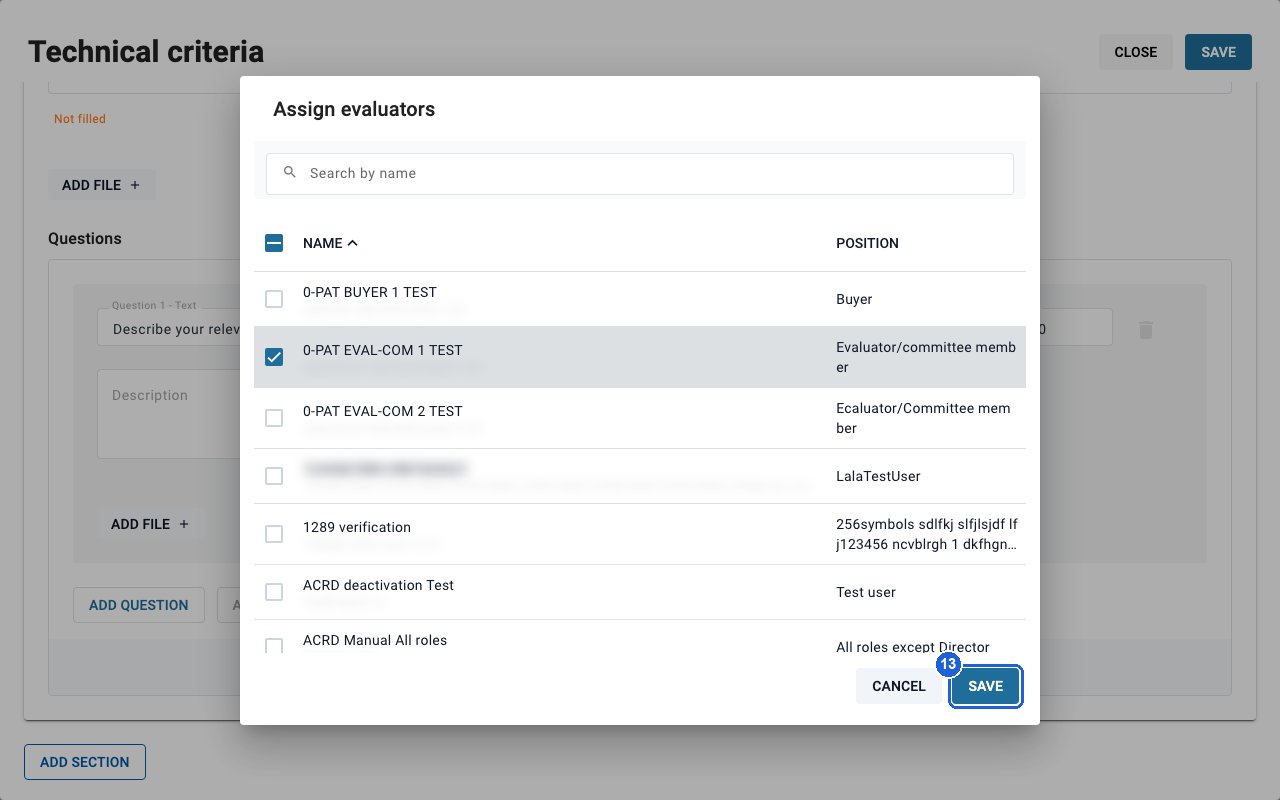
Confirm the evaluators
Click SAVE in the dialog. The section now lists its evaluators.
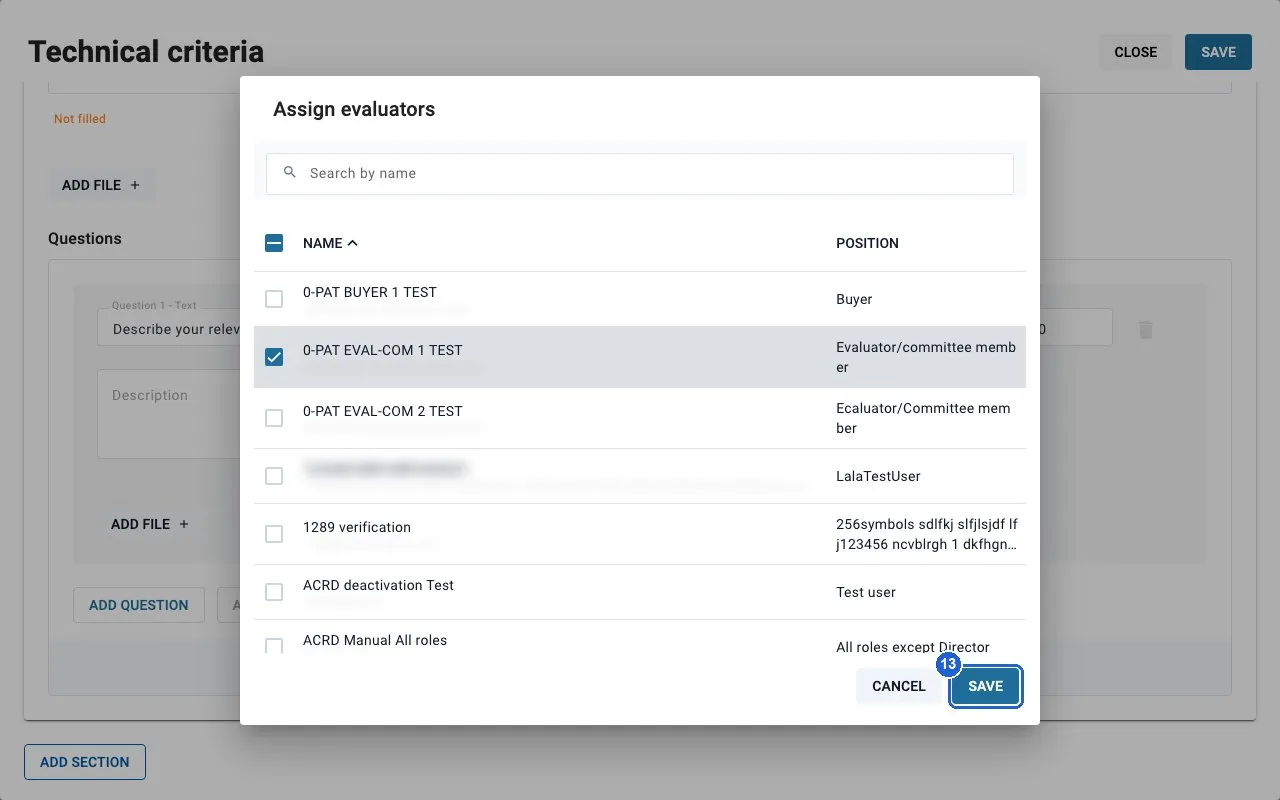
Step 13: Confirm the evaluators — click “SAVE”. -
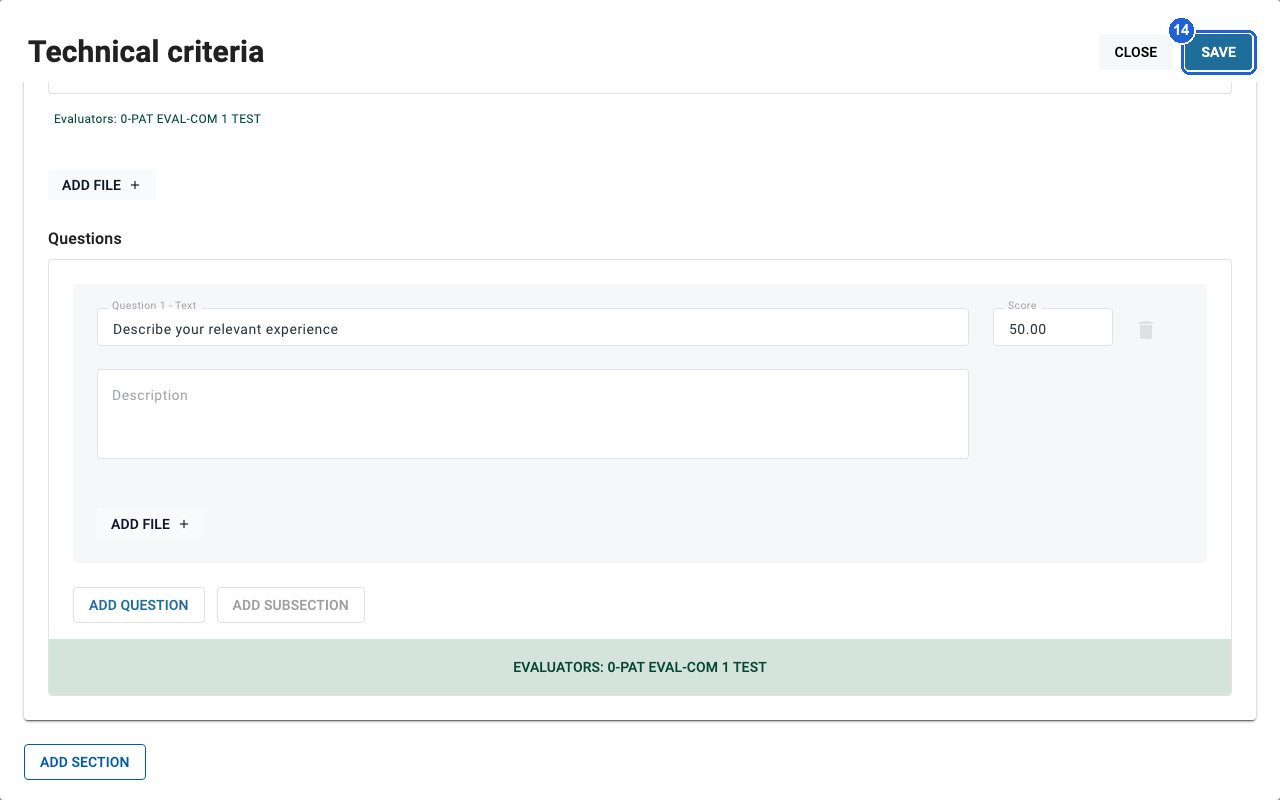
Save the technical criteria
Click SAVE at the top right of the panel. Back on the Configure step, the Technical criteria card shows “Filled”.
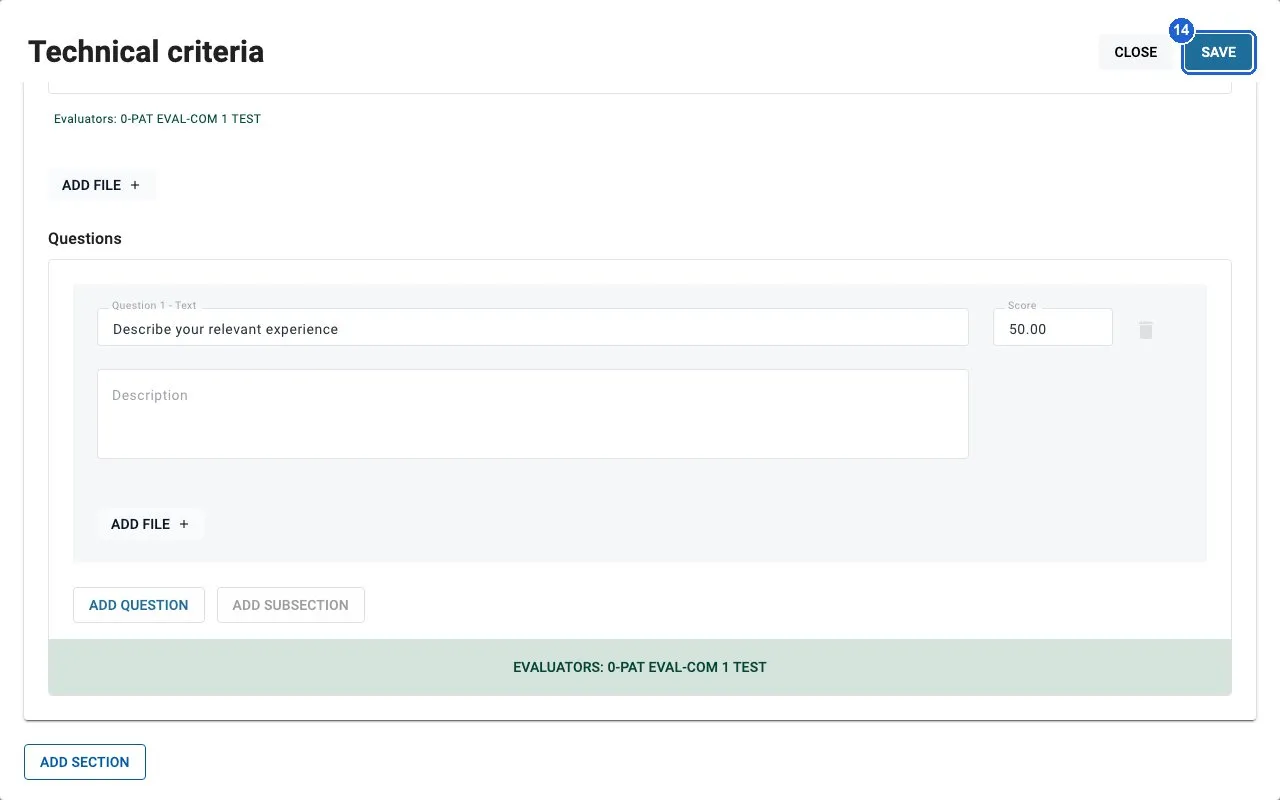
Step 14: Save the technical criteria — click “SAVE”.
Good to know
Section titled “Good to know”- The criteria Score at the top of the panel is set for the event and can’t be edited here. The banner “Total score of the sections with score should be equal to …” shows how many points the scored sections must add up to.
- Question types: Text, Numeric, Yes or No, Single choice and File. Yes or No and Single choice questions have a Go/No Go switch.
- Each section needs at least one evaluator; a section without one shows an orange “Not filled”.
- ADD SECTION adds another section, and the External section menu at the top of a section switches it to an internal section.