

As an approver, how can I reject the event?
Online version: https://help.allmaz.az/guides/sourcing/reject-event/
An approver rejects an event from the Approver dashboard: open it, click REJECT, confirm, give the reason and send the vote.
-
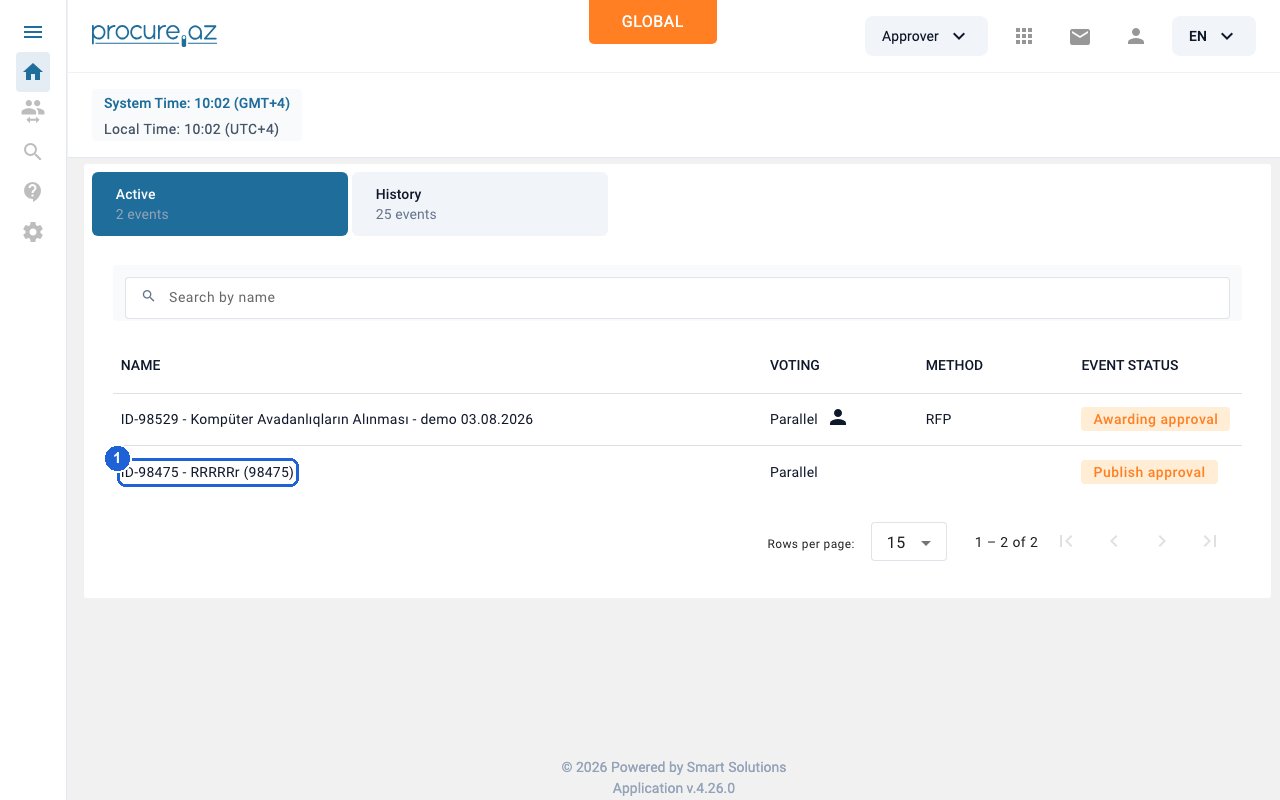
Open the event
On the Approver dashboard, the Active tab lists the events waiting for your vote. Click the event (here “ID-98475 - RRRRRr (98475)”).
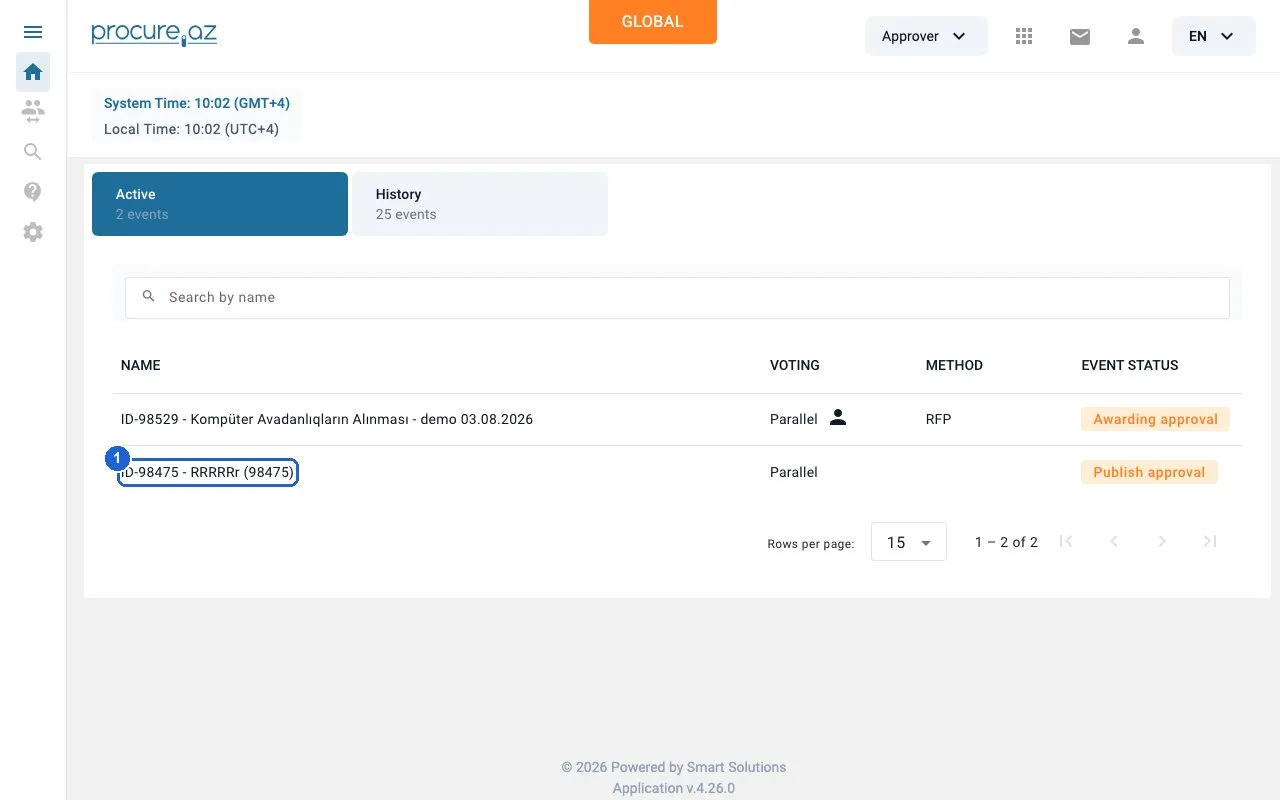
Step 1: Open the event — click “ID-98475 - RRRRRr (98475)”. -
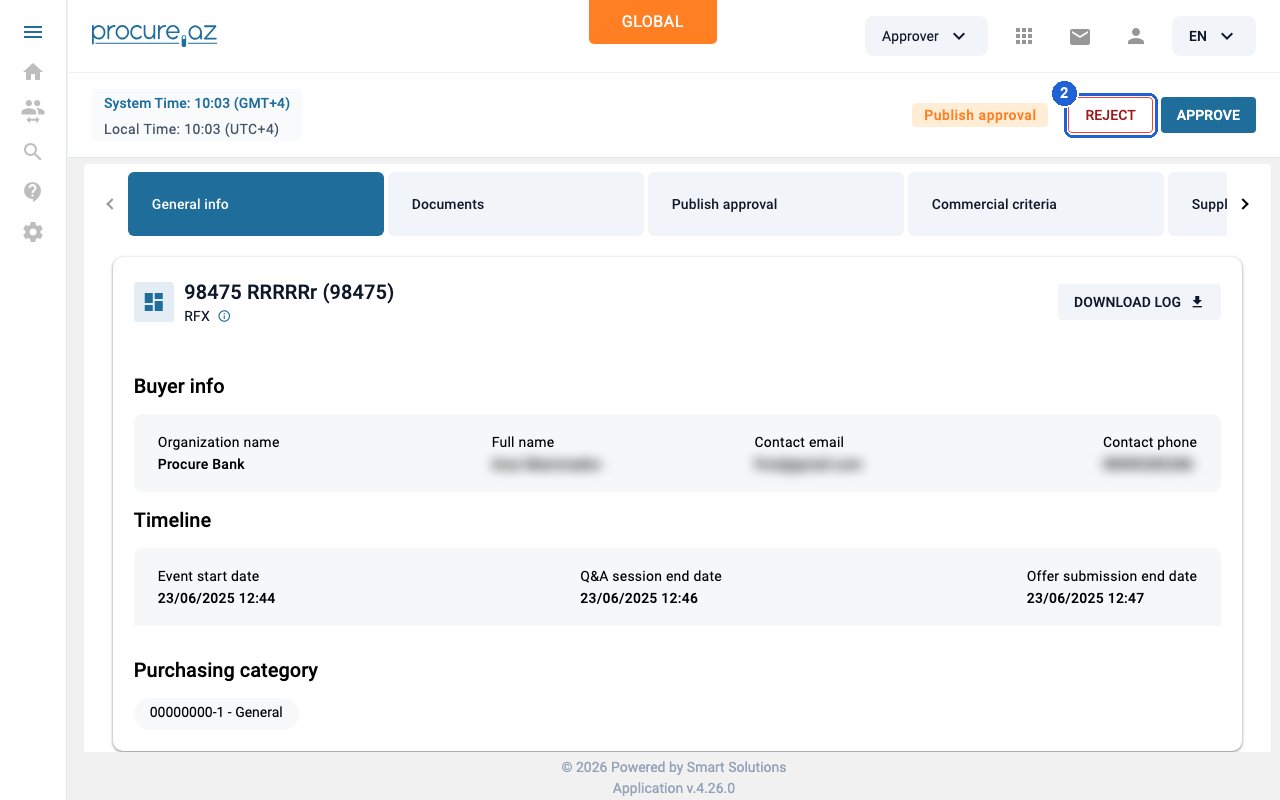
Click REJECT
Check the event’s details and documents, then click REJECT at the top right, next to the “Publish approval” status.
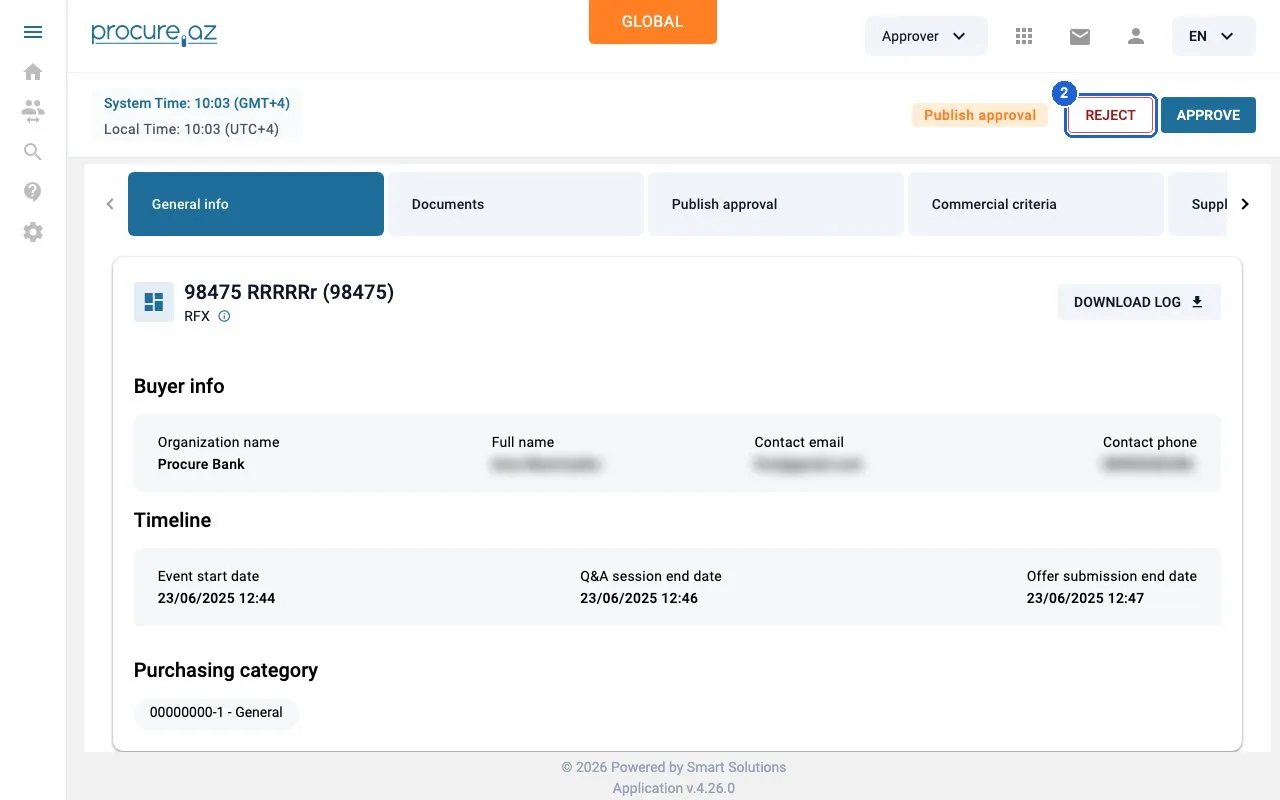
Step 2: Click REJECT — click “REJECT”. -
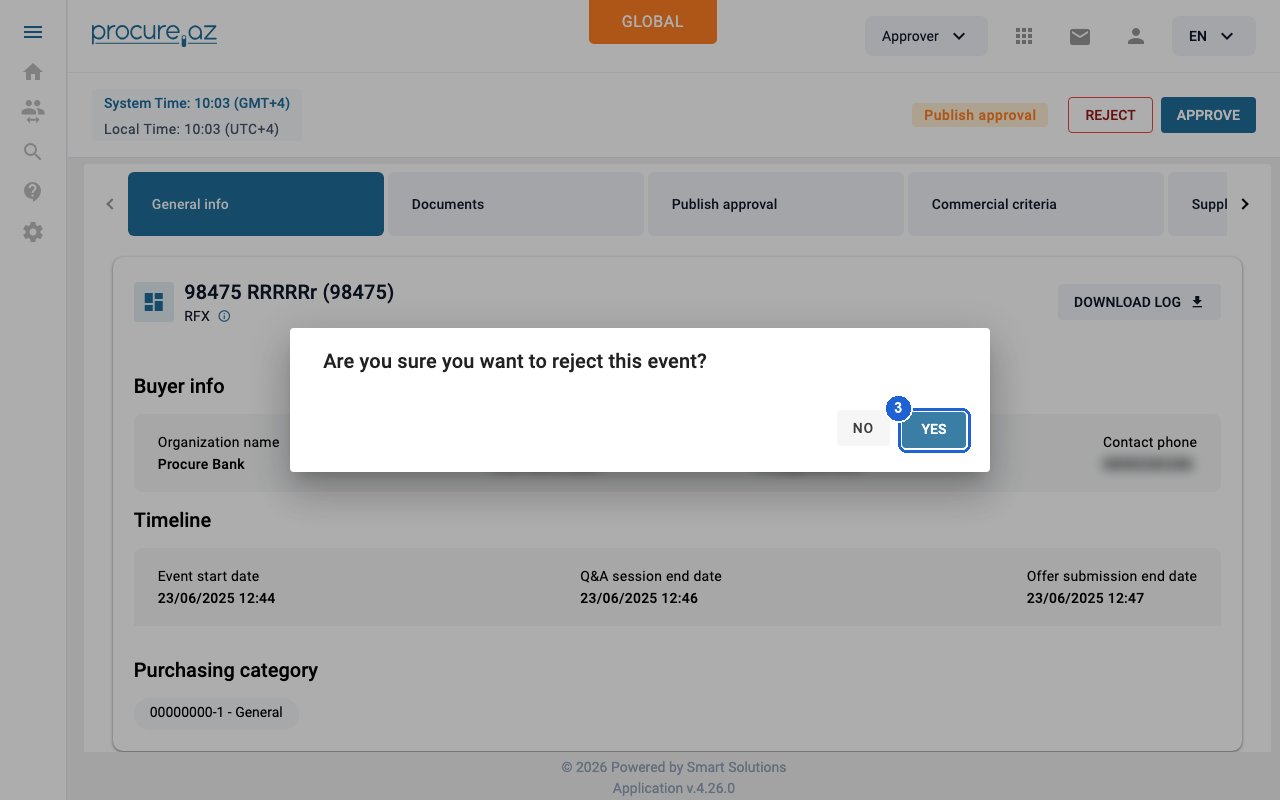
Confirm
Click YES in “Are you sure you want to reject this event?”.
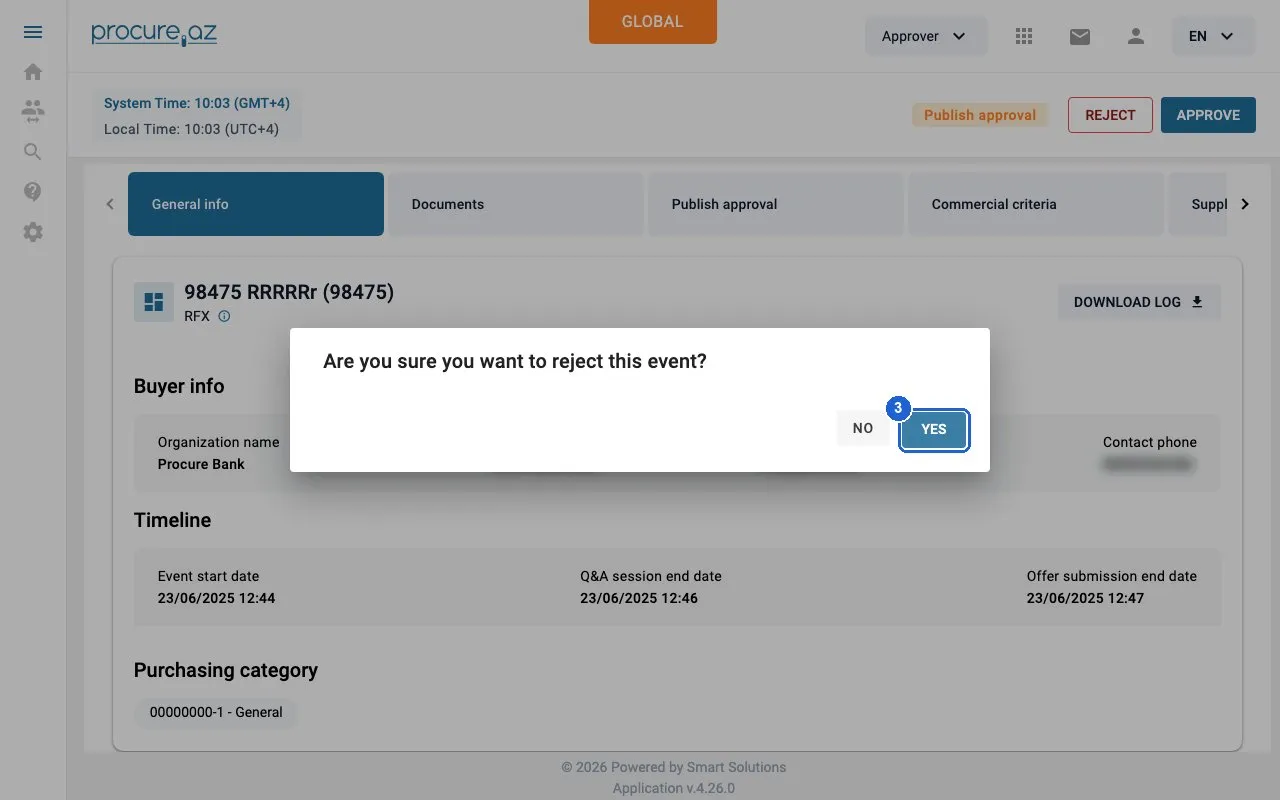
Step 3: Confirm — click “YES”. -
Give the reason
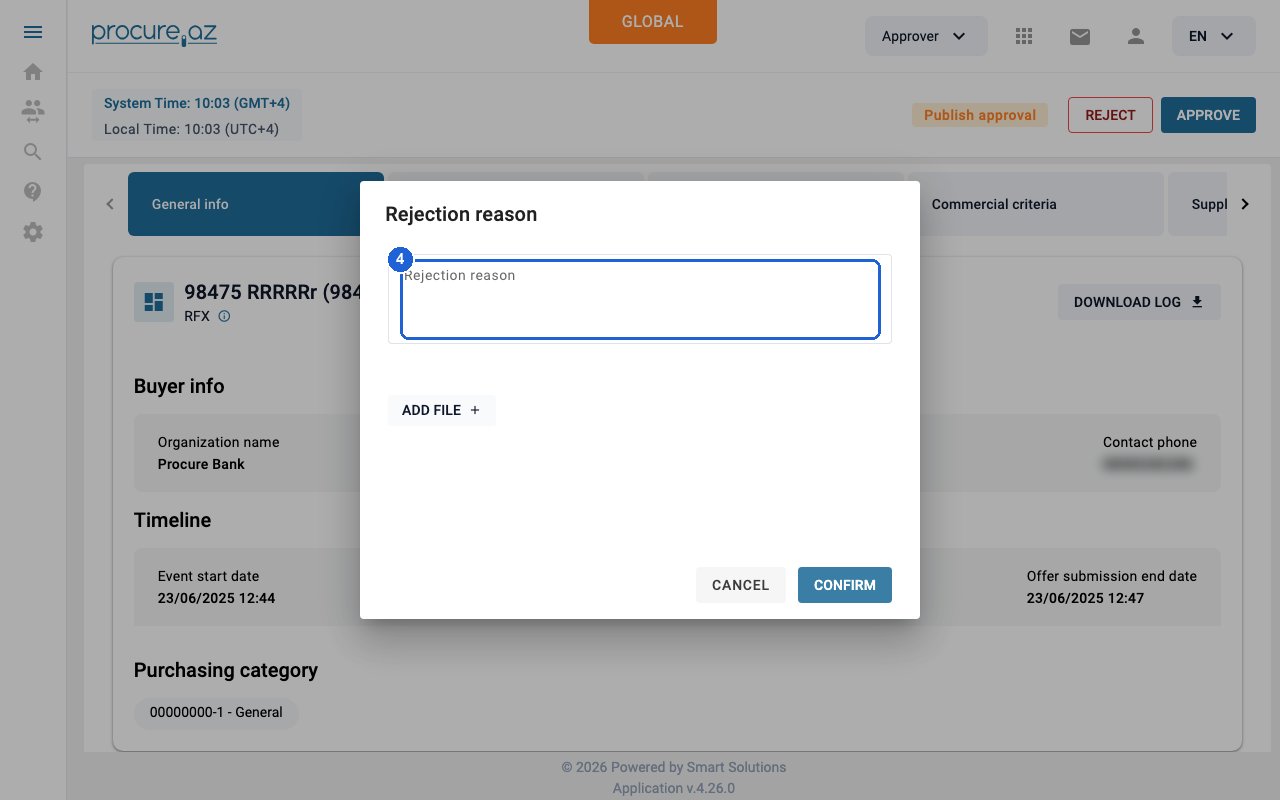
Type why you reject the event in the reason box (required). ADD FILE attaches supporting documents.
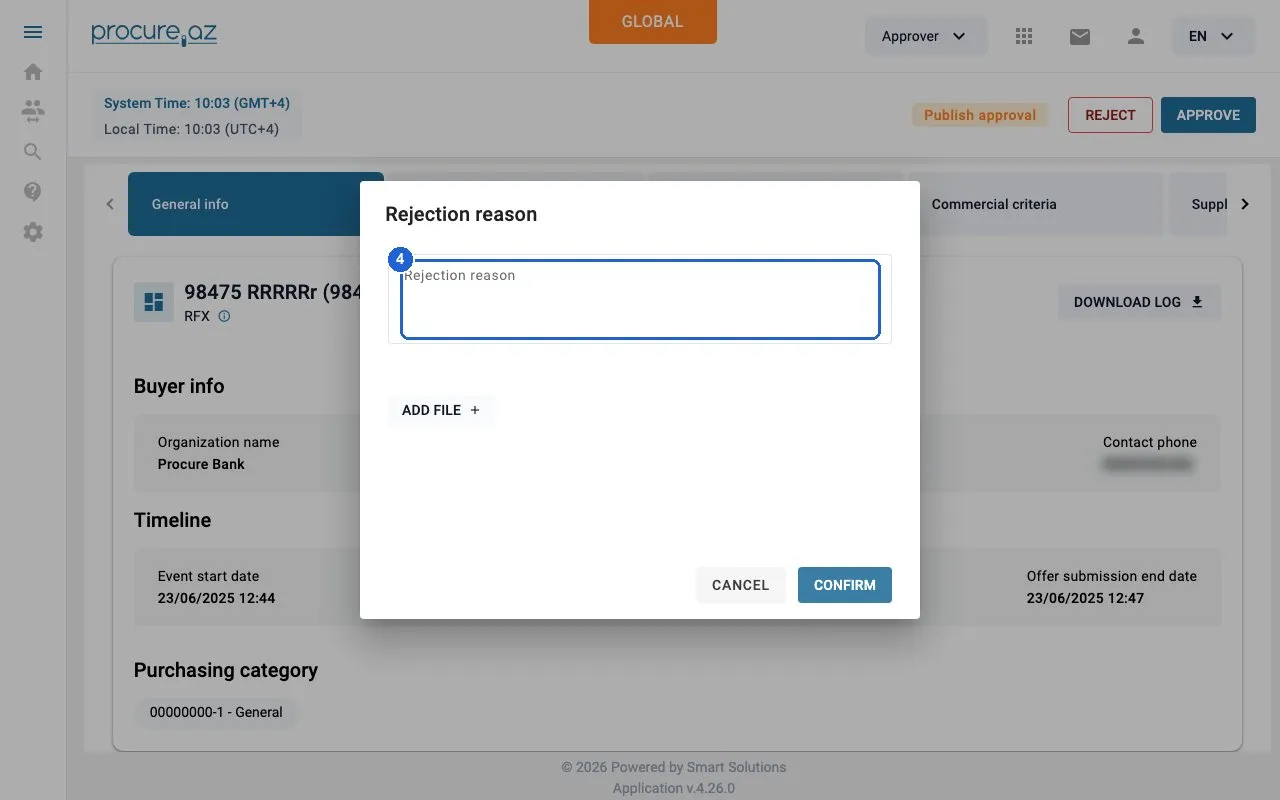
Step 4: Give the reason. -
Send your vote
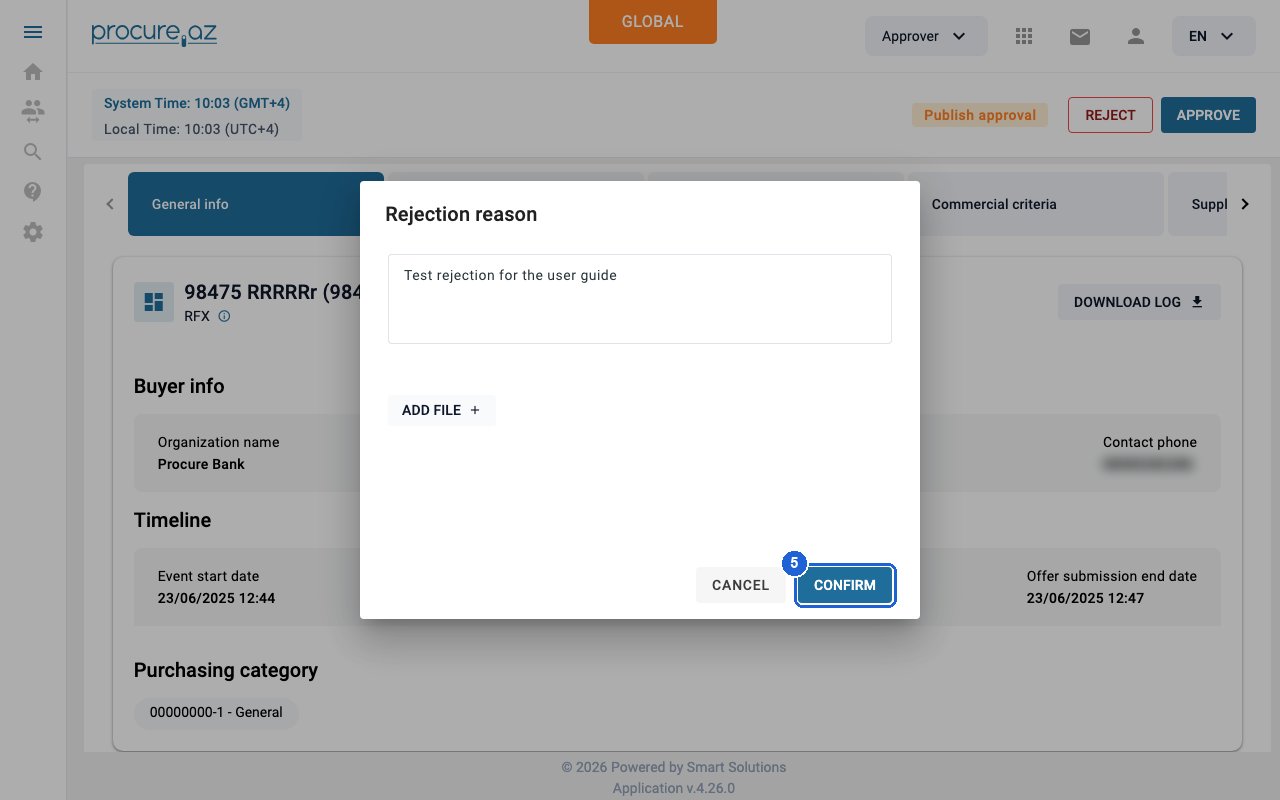
Click CONFIRM. The event moves from the Active tab to History.
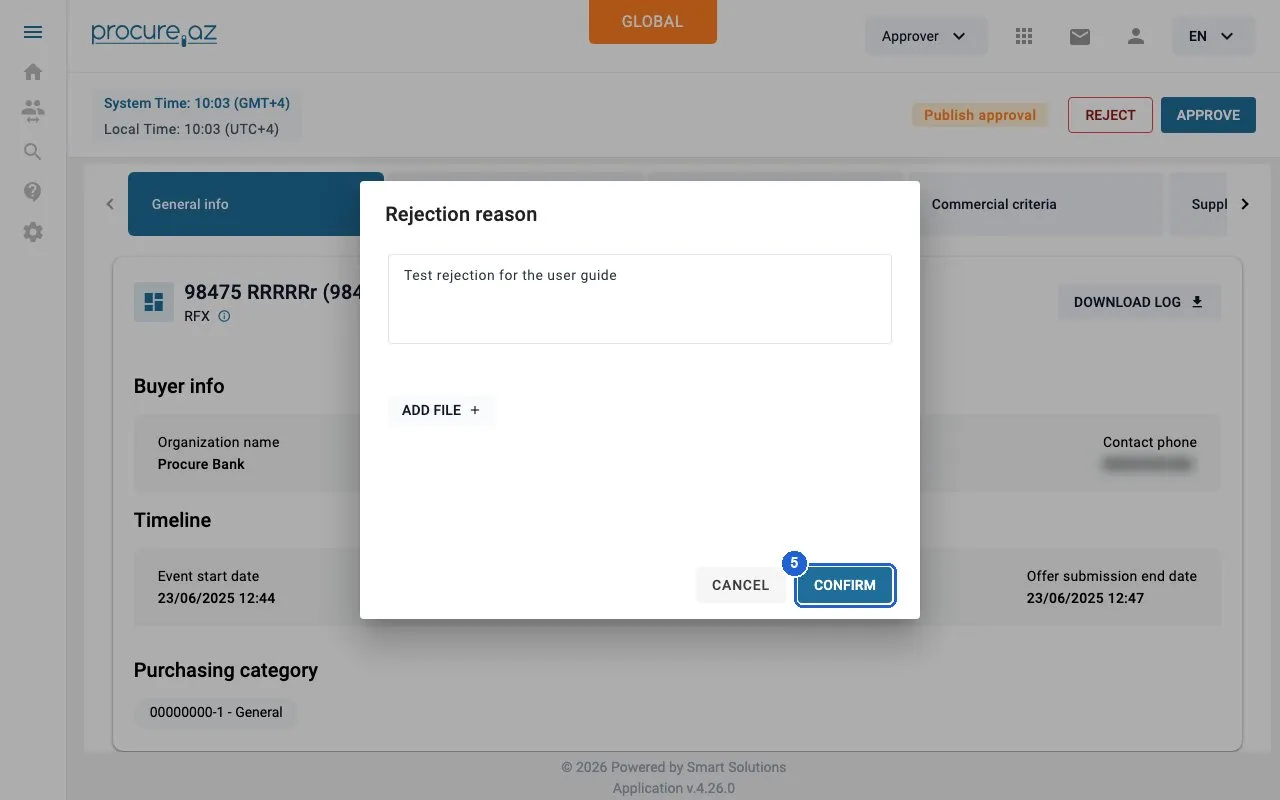
Step 5: Send your vote — click “CONFIRM”.
Good to know
Section titled “Good to know”- Your vote shows on the event’s Publish approval tab: EXPAND your approvers group to see VOTING STATUS “Rejected” with your comment and the voting date.