

How can I export event logs?
Online version: https://help.allmaz.az/guides/sourcing/export-event-logs/
Every event’s history (status changes, participants, approvals, notifications) can be downloaded as an Excel file from its General info tab.
-
Open the event
On the Sourcing dashboard, click the event’s row (here “ID-108548 - EVENT FOR AUCTION”). It opens on the General info tab.
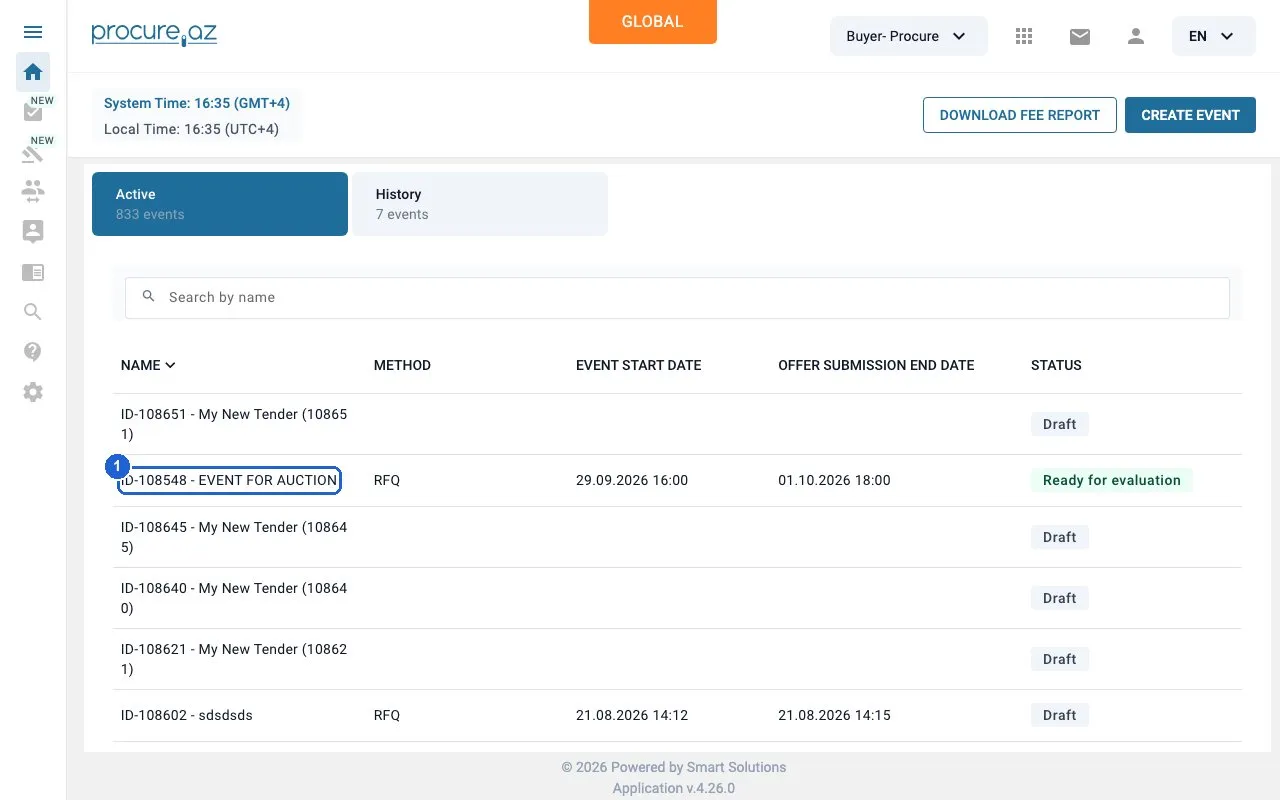
Step 1: Open the event — click “ID-108548 - EVENT FOR AUCTION”. -
Download the log
Click DOWNLOAD LOG at the top right of the General info card. An Excel file downloads straight away; there is no message on screen, so look in your browser’s downloads.
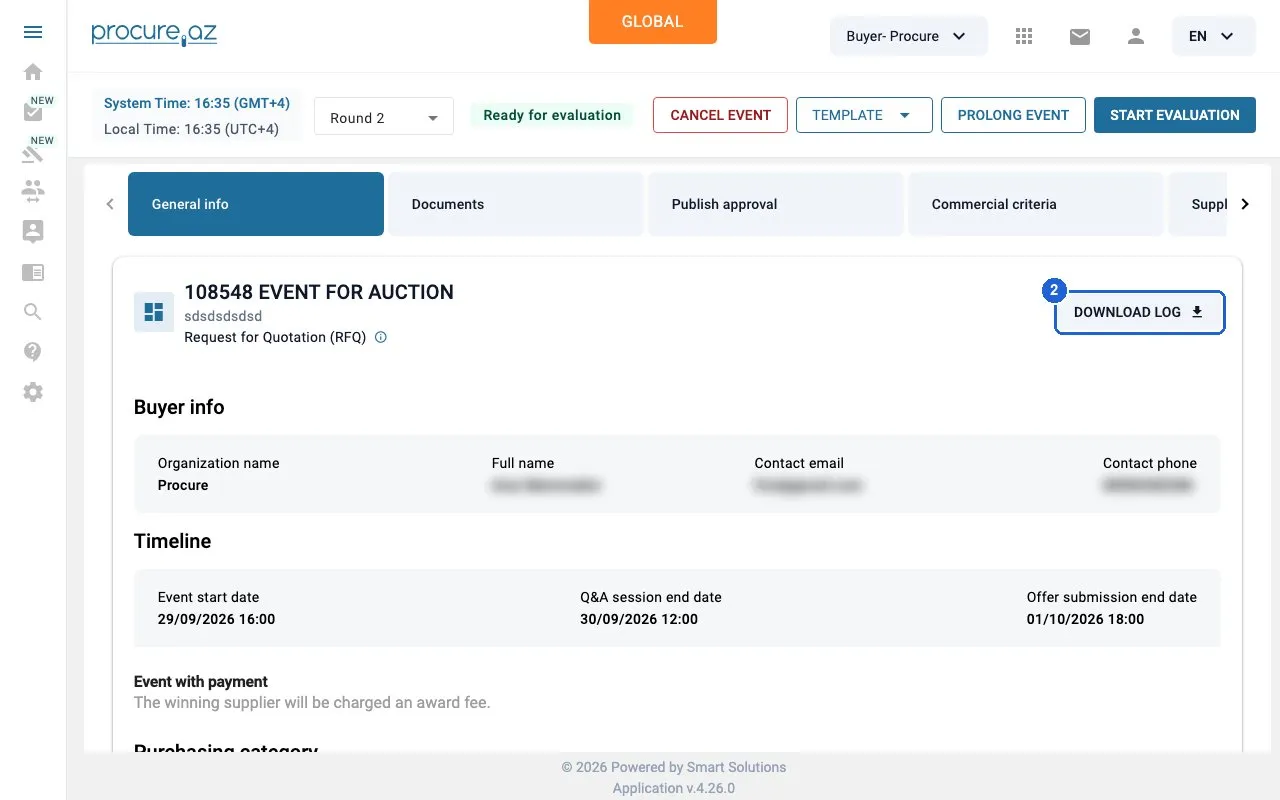
Step 2: Download the log — click “DOWNLOAD LOG”.
Good to know
Section titled “Good to know”- The file is named event_log_EVT-<event ID>_<date-time>.xlsx.
- It has six sheets: Event Statuses (each status change with time, previous and new status, who made it and why), Participant Statuses, Approval, Transfer, Vendor Notifications and Currency.
- The log is for the round shown in the header: event 108548 opens on Round 2, so the file is named EVT-108648.